Connect SuperNinja to GitHub
Last updated: June 26, 2026
SuperNinja allows you to interact with GitHub repositories directly from your workspace using the MCP GitHub Server connector. This feature lets you clone, commit, push, and manage repositories efficiently without leaving SuperNinja. Below are the most detailed steps to help you integrate GitHub with SuperNinja.
Connect GitHub to SuperNinja
Before using any GitHub prompts, you need to connect your account:
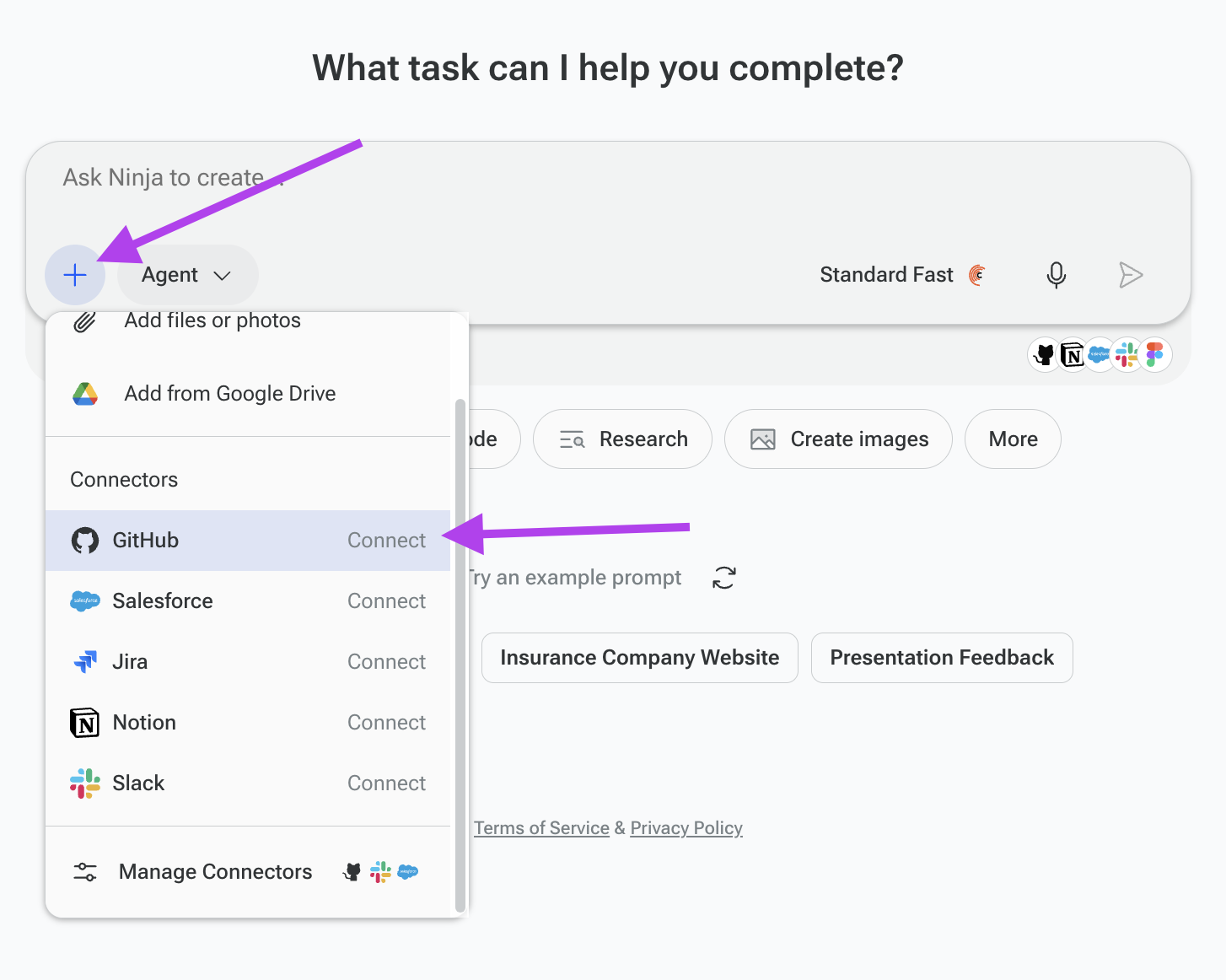
In the SuperNinja prompt box, click the Plus dropdown menu.
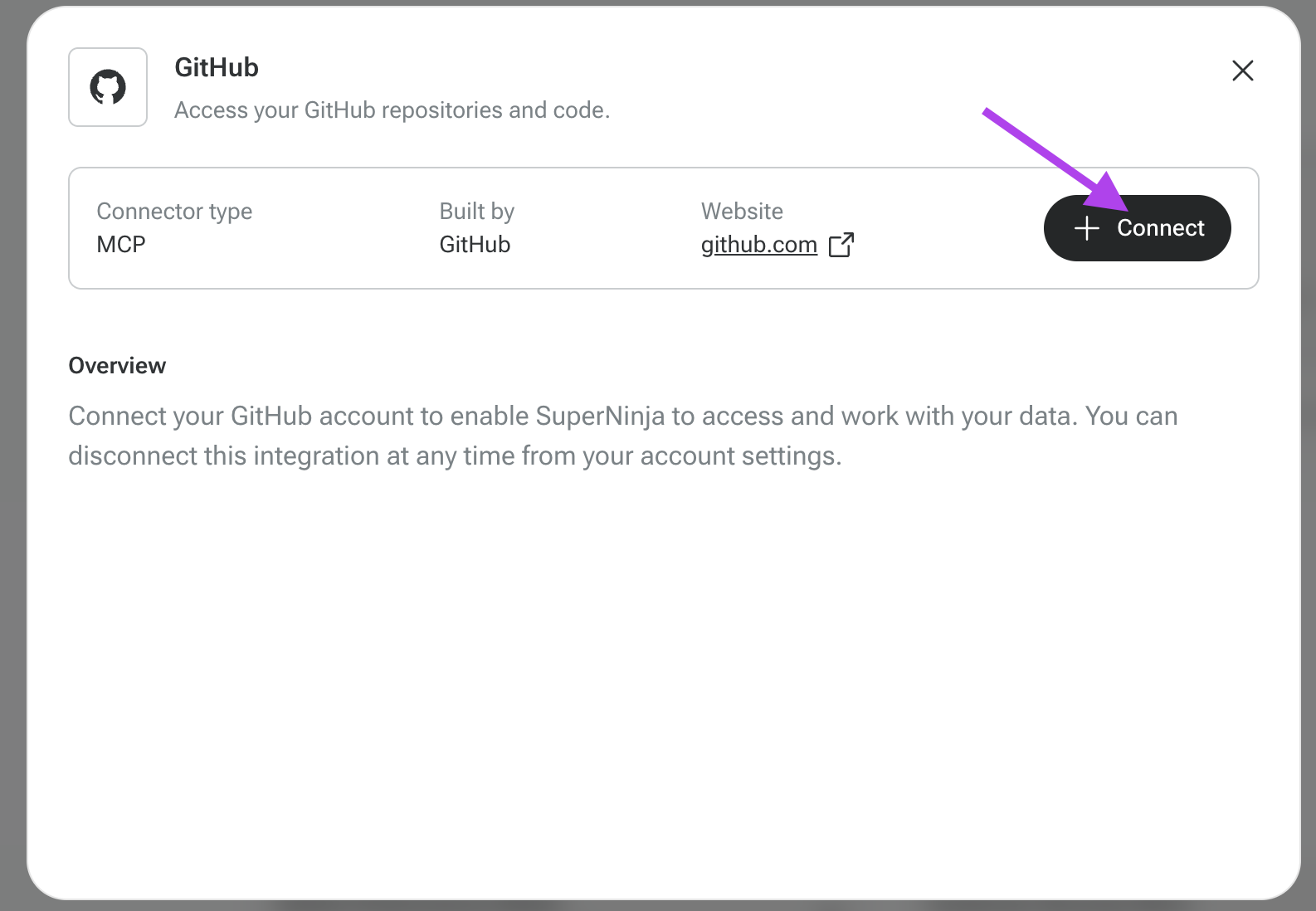
Click Connect next to GitHub
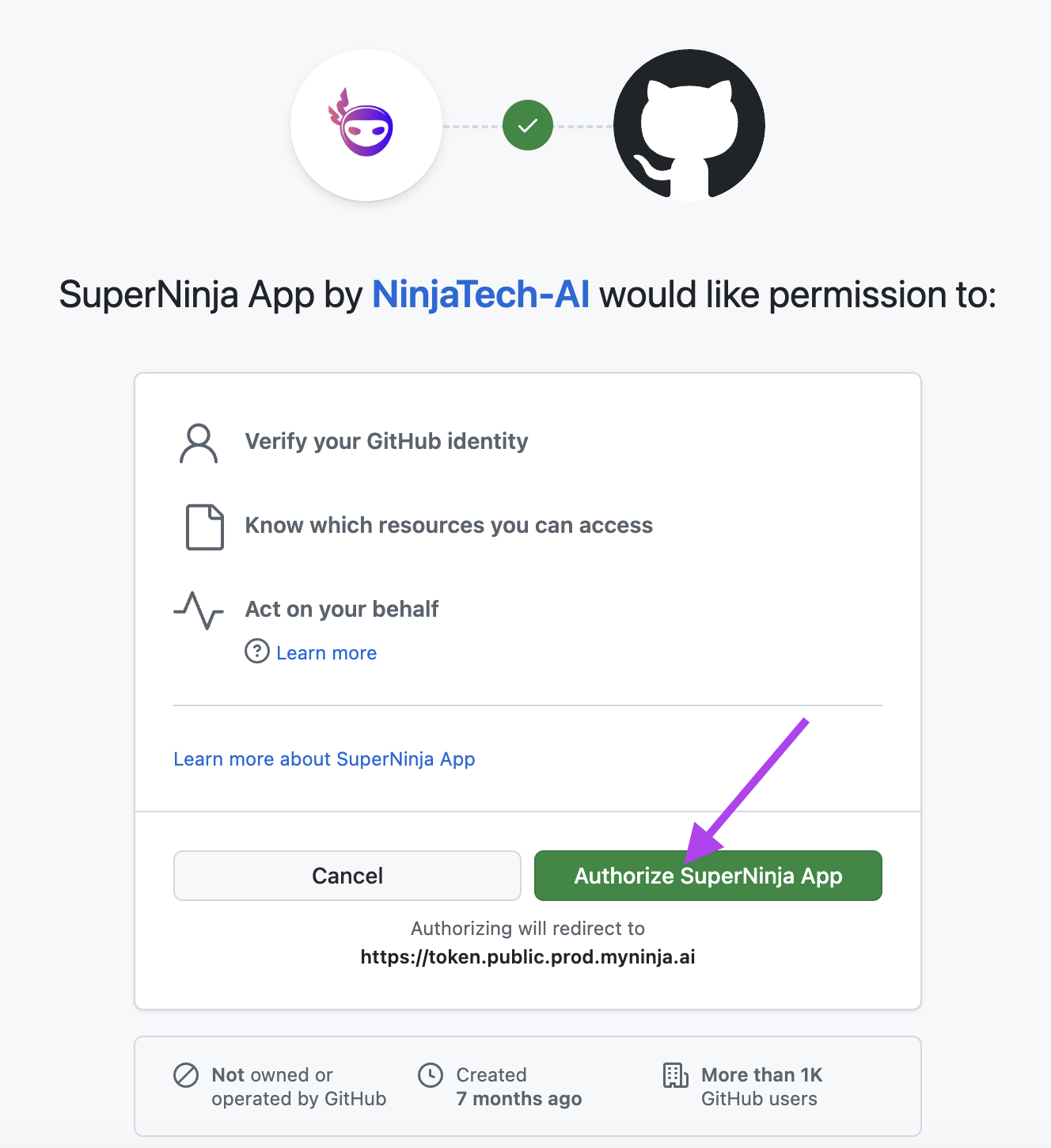
Connect and authorize the SuperNinja GitHub App.
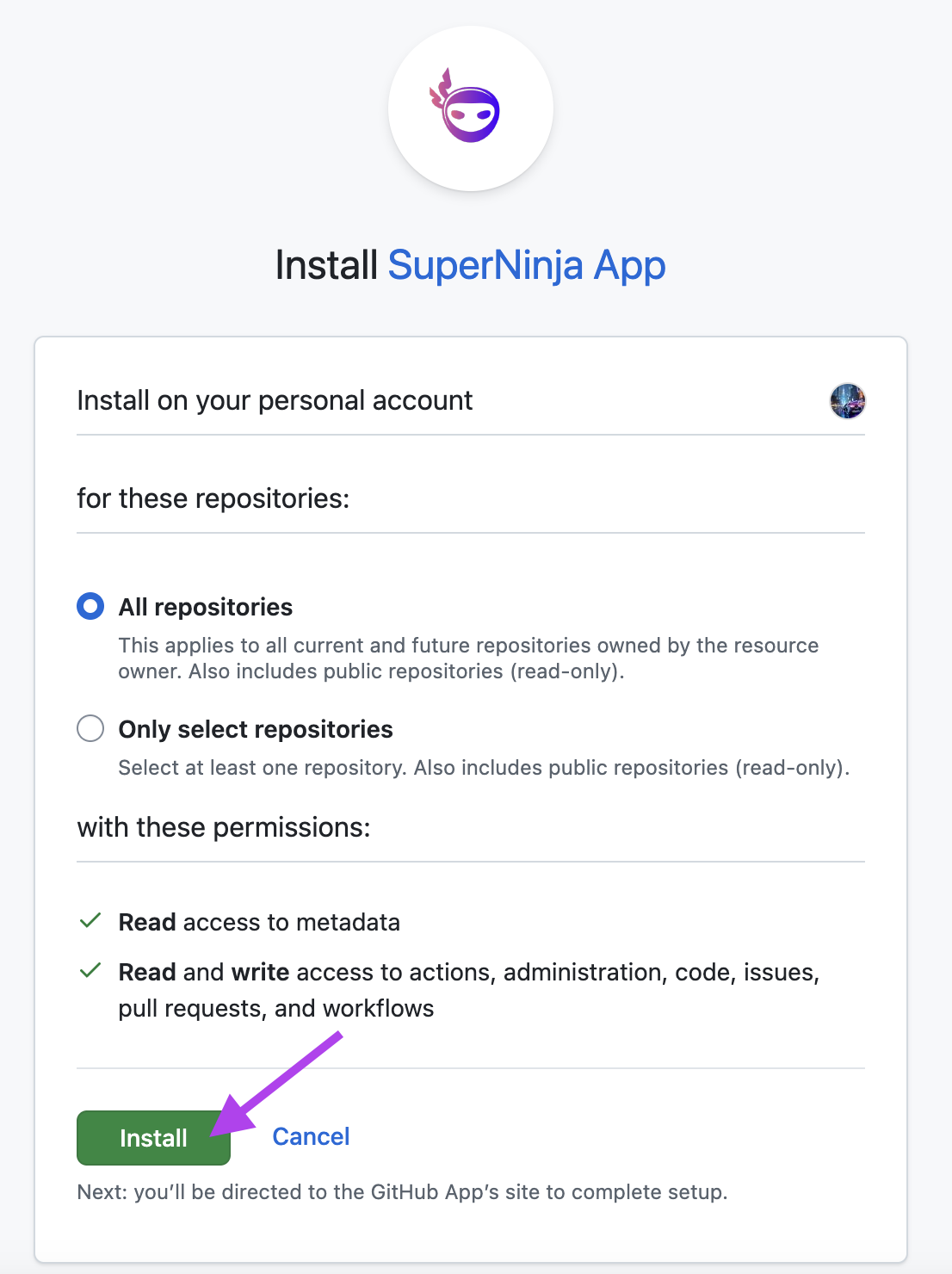
A pop-up will appear prompting you to log in and authorize SuperNinja with your GitHub account. You’ll be asked whether you want to:
All repositories → Grants access to all current and future repositories (public repos are read-only).
Only selected repositories → Grants access to specific repositories you select (also includes read-only access for public repos).
Then, in the SuperNinja prompt box, click the Plus dropdown menu, toggle GitHub to ON, select the repository and branches and click save.
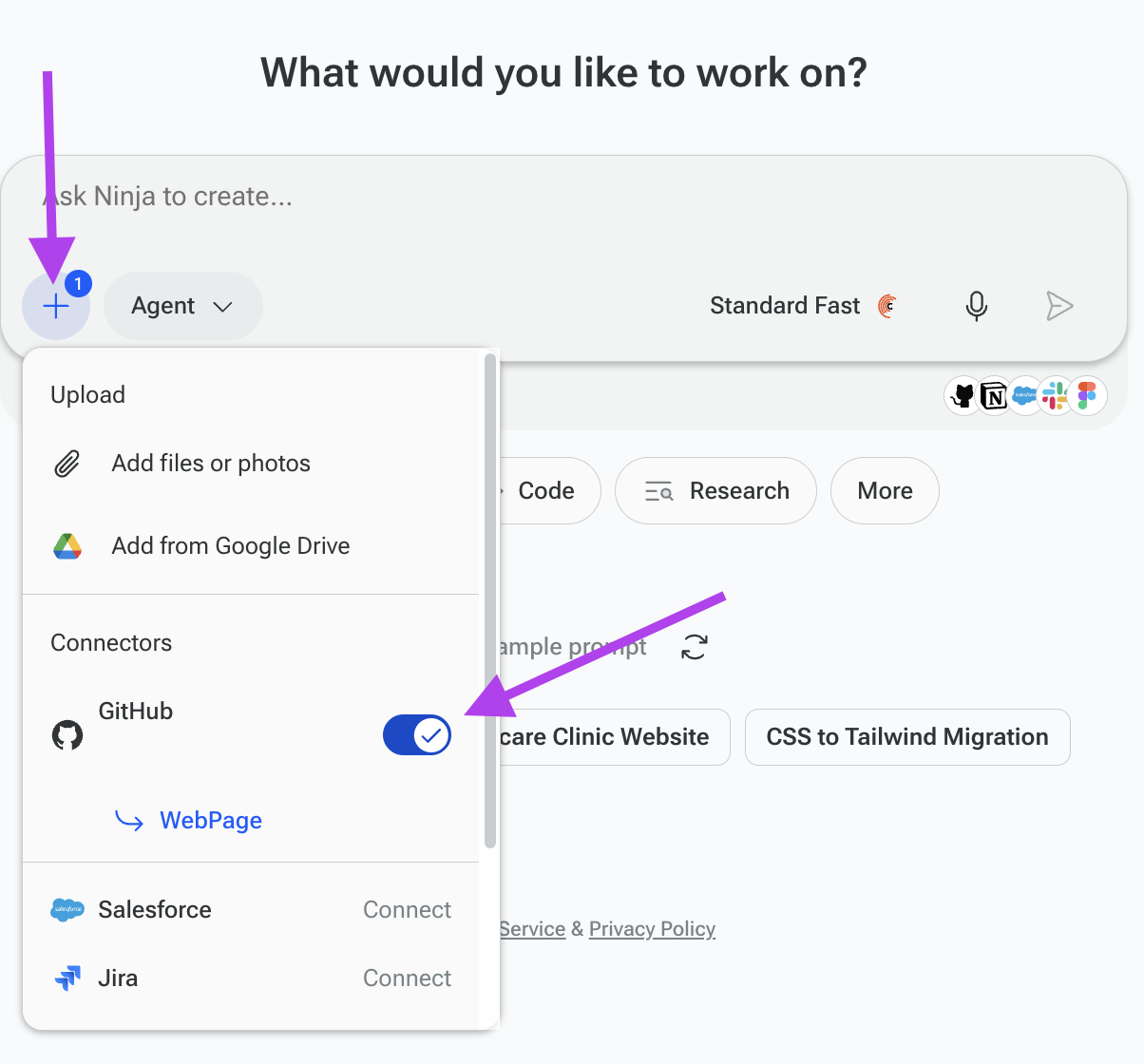
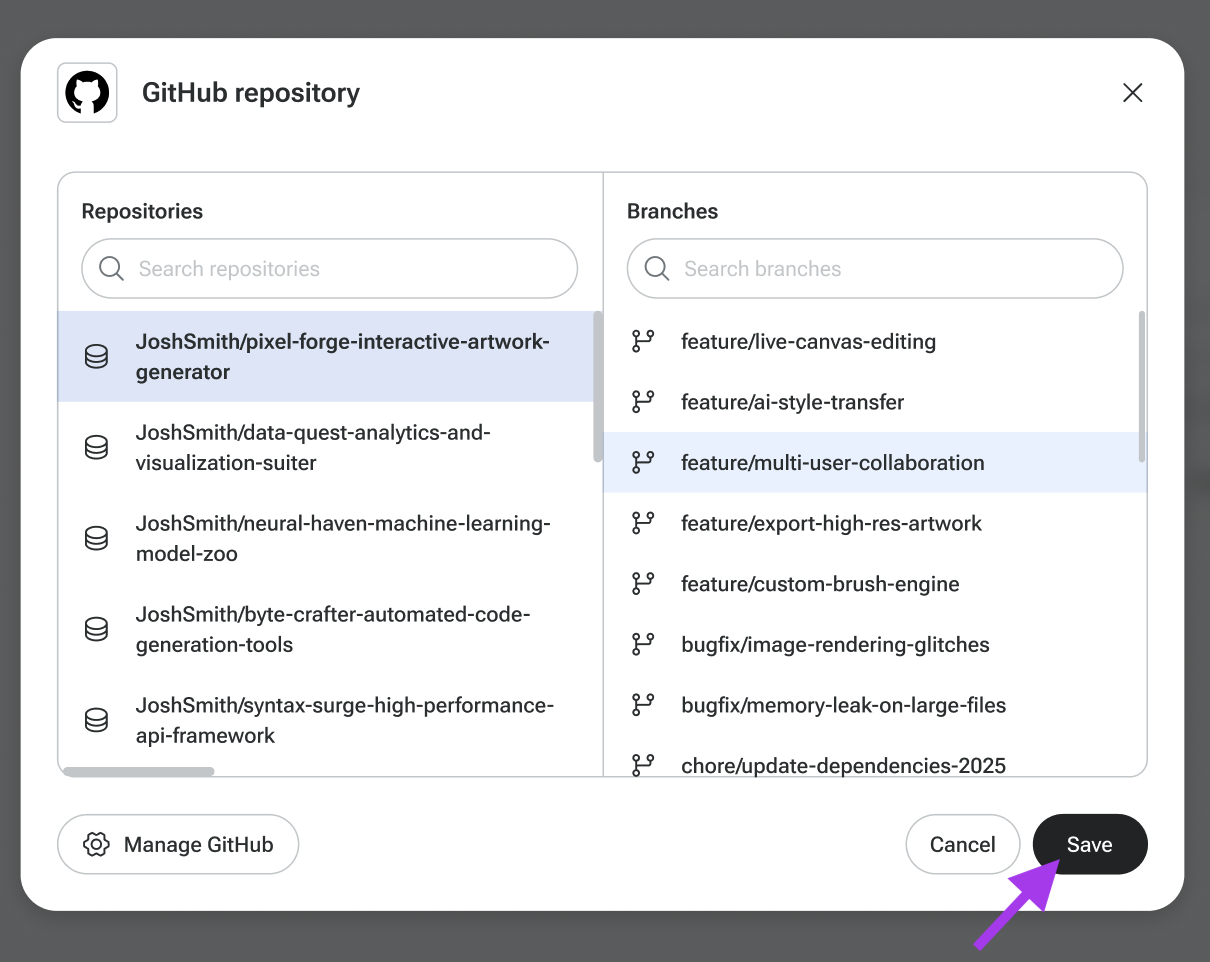
Once done, you’ll be able to use GitHub.
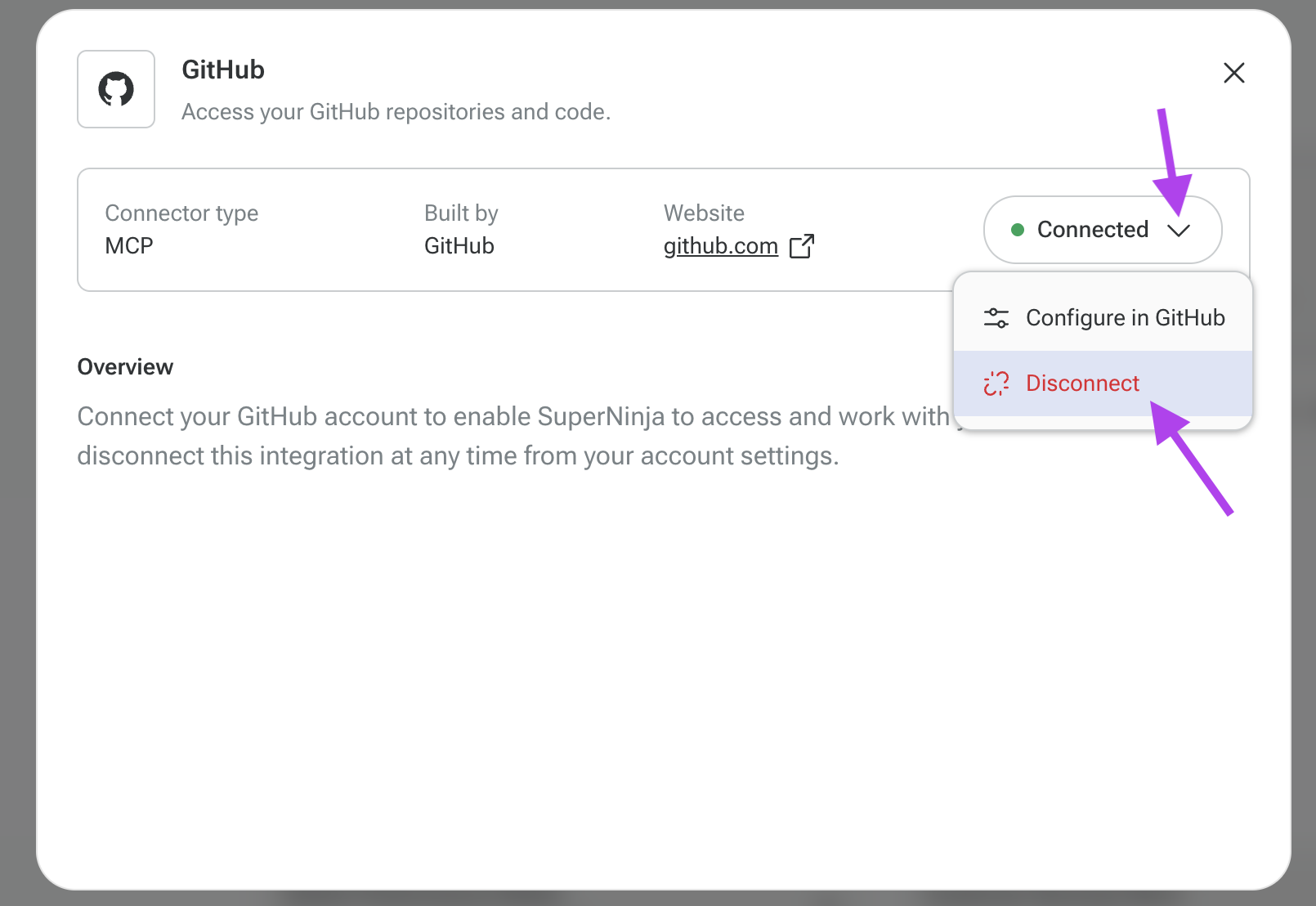
To disconnect GitHub:
In the SuperNinja prompt box, click the Plus dropdown menu.
Click on the GitHub text.
In the pop-up window, click on "Manage GitHub" in the left corner.
Open the Connected dropdown menu.
Select Disconnect.
Clone a Repository
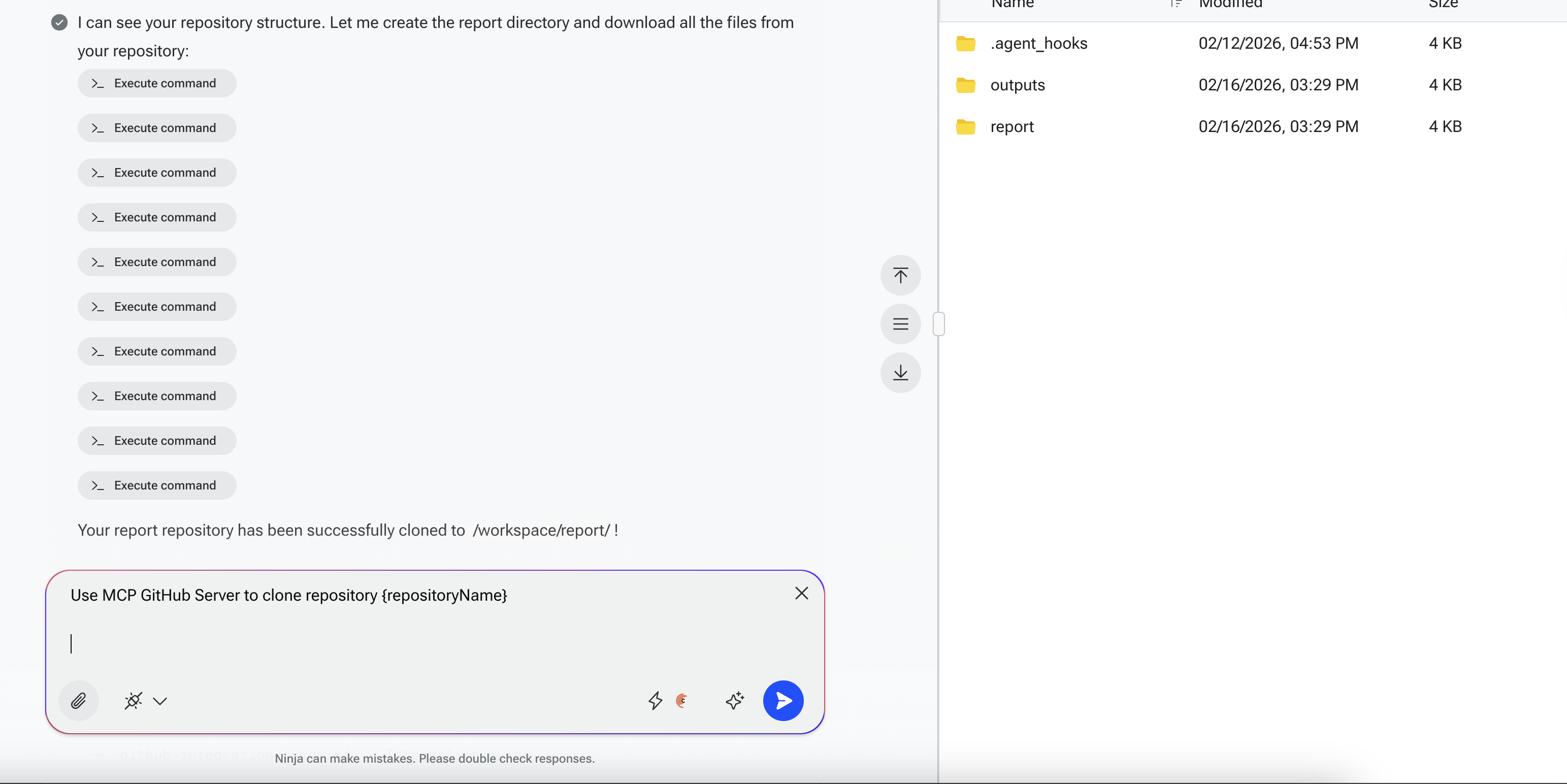
Once connected, you can clone a repository into your SuperNinja workspace.
Example prompt:
Use MCP GitHub Server to clone the repository [repository name]
Create a Repository and Commit Files
You can also create new repositories and commit files using the MCP token.
Example prompt:
Create a GitHub repository named [repository name] and commit a [file name] file to it. Use the MCP token, and once pushed to the origin, verify that the commit succeeded.
Push Changes
After editing files in your workspace, you can push updates to the remote repository.
Example prompt:
Push all changes from my SuperNinja workspace to GitHub repository [repository name] on branch [branch name] using MCP token.
Best Practices
Always specify the repository name and branch in your prompt.
Always clearly mention that you want to use the MCP GitHub Server.
Mention any specific files or changes you want the AI to work with.
Use General Agent for file creation and modification tasks; Chat Agent is limited to conversation.
Troubleshooting
If the AI cannot access the repository, check your MCP GitHub Server connection and permissions.
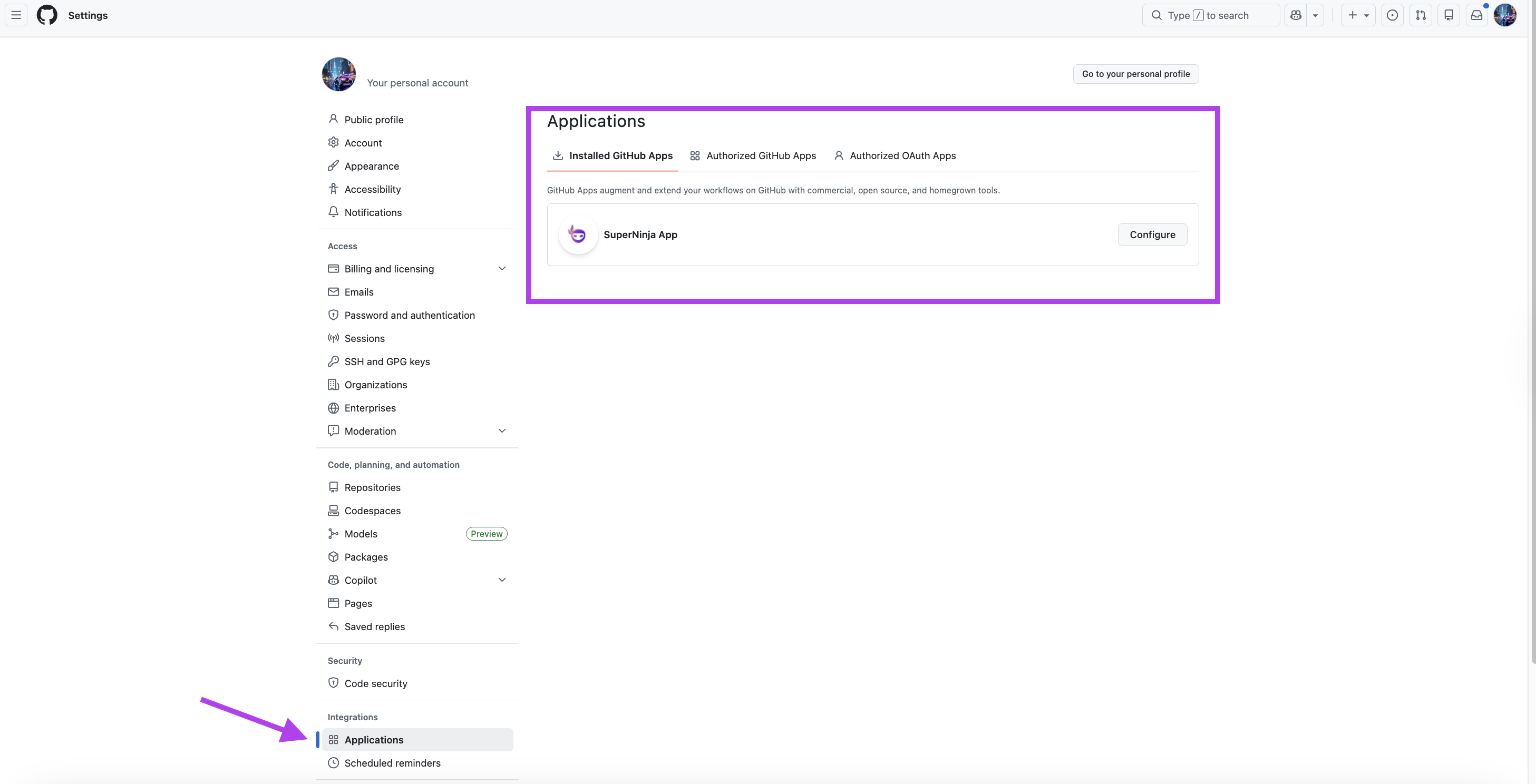
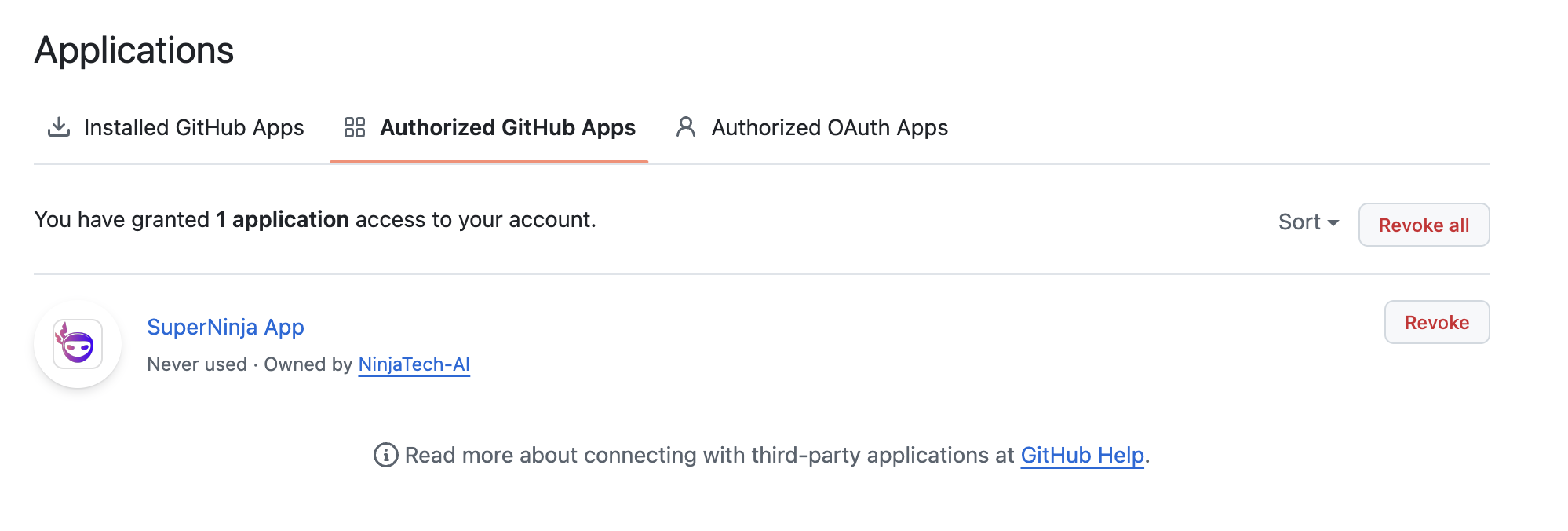
Go to GitHub Settings, then select Applications and check whether SuperNinja is installed and authorized.
Ensure your prompt explicitly mentions the repository and branch.
For repeated failures, provide screenshots and exact prompts used—this helps the support team investigate.
If you have any questions, please contact us at support@ninjatech.ai or submit a request through this form. We’re here to help!