How to Manage Disk Space in SuperNinja
Last updated: April 30, 2026
The Linux Sandbox is a separate environment within SuperNinja where you can run scripts, test code, and perform tasks safely without affecting other parts of the system. It has an 8GB disk limit, so it’s important to occasionally clean up unnecessary files to ensure smooth operation. Here’s how you can check and free up space manually with the terminal.
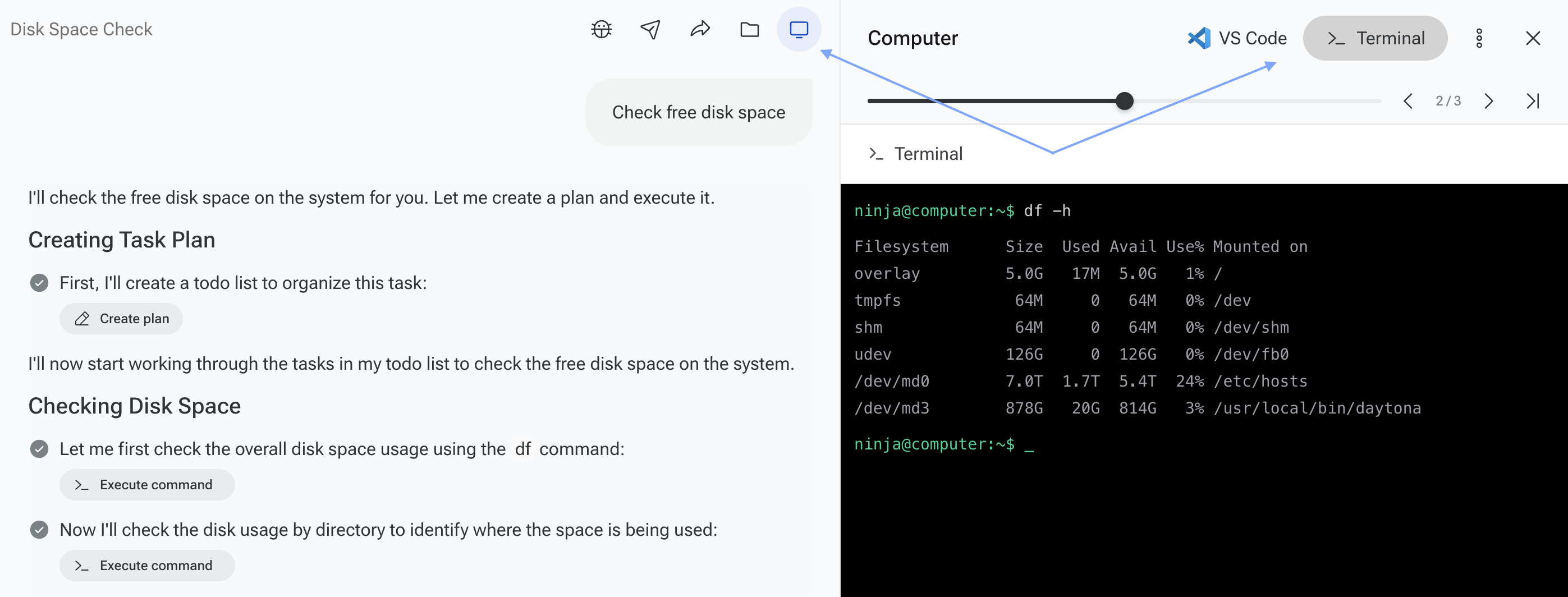
1. Check Disk Usage
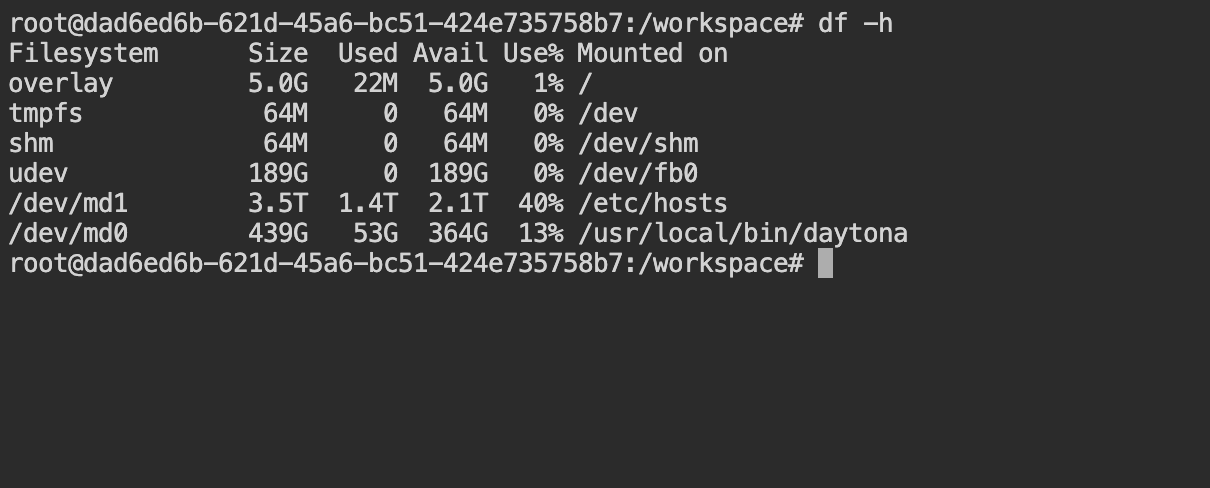
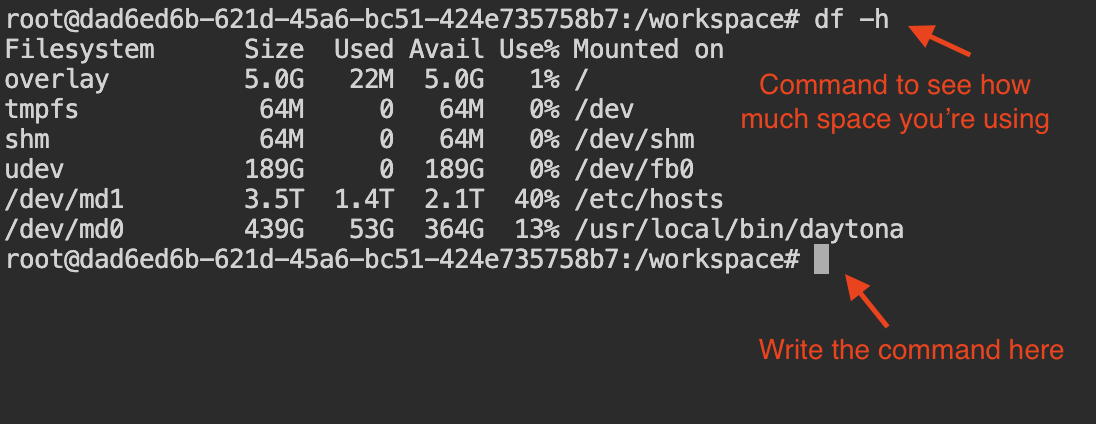
To see how much space you’re using:
df -h
hshows sizes in human-readable format (MB/GB).Look for the line with your sandbox mount point (
overlay).
2. Find Large Files
To find the largest files in your sandbox:
cd /workspace && du -ah | sort -rh | head -n 20
du -ah ~lists all files and directories with sizes.sort -rhsorts them by size, largest first.head -n 20shows the top 20 largest items.
3. Find Old Files
To find files older than 2 days, for example:
find ~ -type f -mtime +2 -ls | sort -k7
mtime +2finds files modified more than 2 days ago.Adjust the number to change the age.
4. Delete Unnecessary Files
Once you’ve identified files to remove:
rm /path/to/file
To delete a directory and everything inside:
rm -rf /path/to/directory
⚠ Be careful: Deleted files cannot be recovered. Only remove files you don’t need.
If you have any questions, please contact us at support@ninjatech.ai or submit a request through this form. We’re here to help!