Managing and Adding Users in Your Workspace
Last updated: June 16, 2026
Under the Pro plan, you can add up to 5 members to your workspace. Under the Business plan, you get unlimited seats.
All credits are shared across every member of the workspace.
To add team members to your workspace:
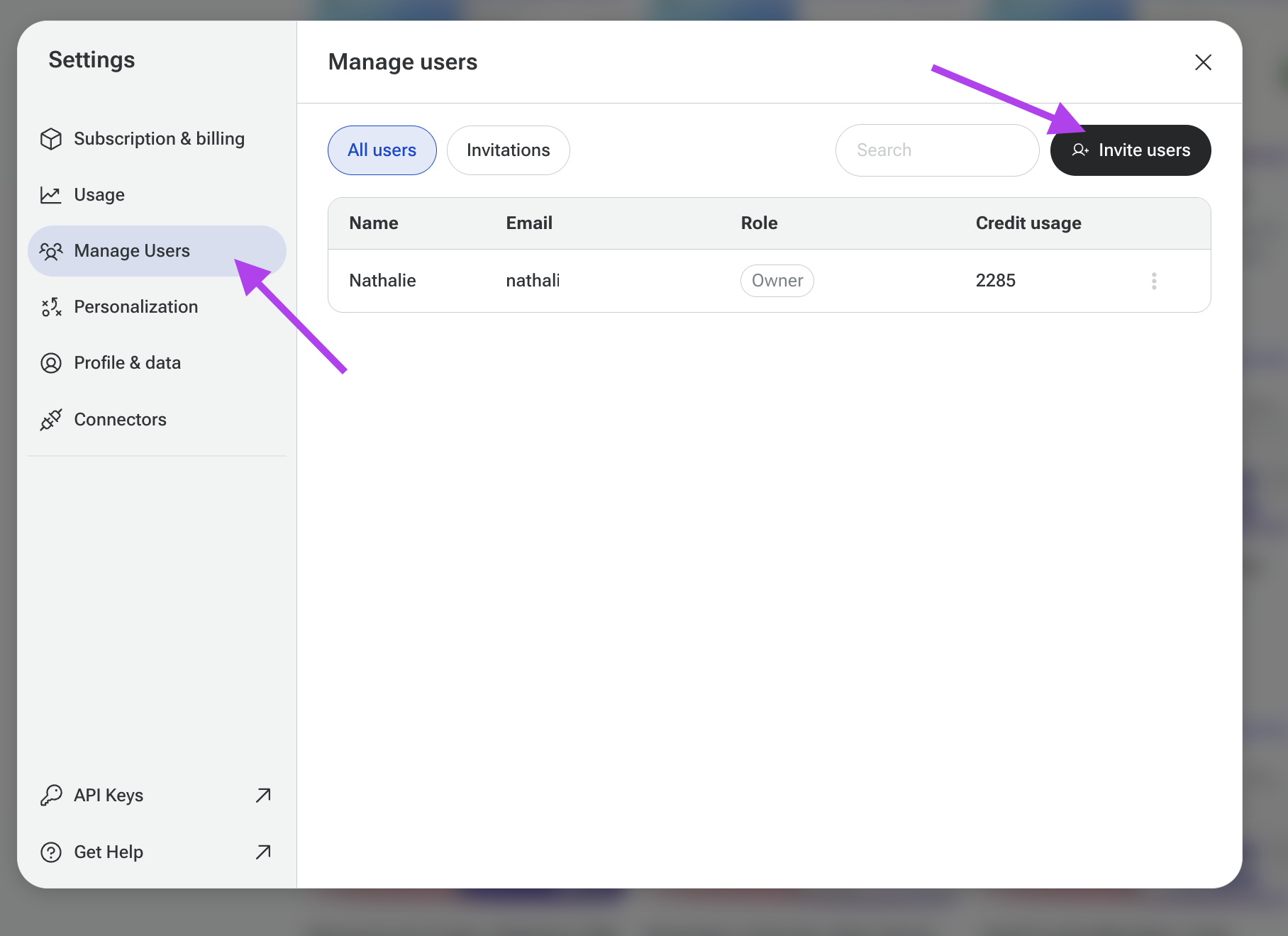
Go to Settings.
Select Manage Users.
Click Invite Users.
Enter the email addresses of the team members you'd like to add.
Send the invitations.
Managing invitations
From the Manage Users page, you can:
Review the status of each invitation (accepted or pending)
Resend an invitation
Remove a pending invitation
Important: Accepting an invitation will add the user to the workspace and cancel their current individual plan.
Managing member roles
The workspace owner can, from Manage Users in Settings:
Change a member's status
Promote a member to admin
Remove a member from the workspace
Joining a workspace (for invited users)
Create a SuperNinja account (if you don't already have one).
Open the invitation email.
Click Join Workspace and follow the prompts.
Members can leave a workspace at any time by going to Subscription & Billing in their account and selecting the option to leave the workspace.