Best Practices for Image Generation
Last updated: June 26, 2026
Creating high-quality images with SuperNinja AI requires an understanding of how to craft effective prompts, choosing the best model, and refining your output. If you're experiencing difficulties or unexpected results, follow these best practices to improve your image generation experience.
Break Down Complex Prompts
If your prompt is too detailed or too complicated, it may lead to unexpected or inconsistent results. Instead of trying to generate everything at once, break the process into multiple steps.
Start with a simple version of your prompt and review the resulting image.
If the resulting image is acceptable, add more details to your prompt and review the result.
If the resulting image is acceptable, repeat the process.
Integrate elements gradually, guiding the AI toward your final vision.
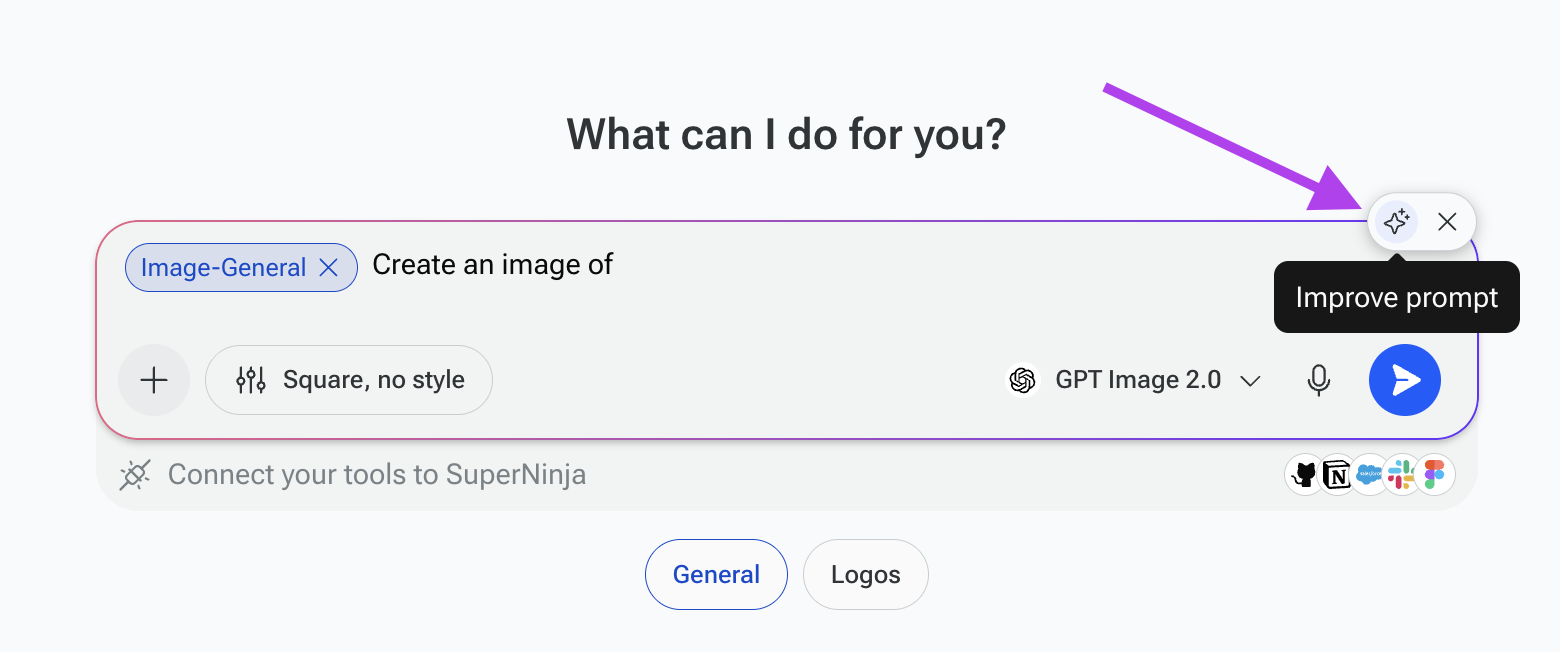
Use the Prompt Improver
If you're struggling to create an effective prompt, try the Prompt Improver feature. This tool enhances your input by:
Expanding on vague descriptions with additional details.
Providing clearer and more structured prompts.
Helping SuperNinja generate better results, faster.
Using this tool can save time and lead to higher-quality image outputs.
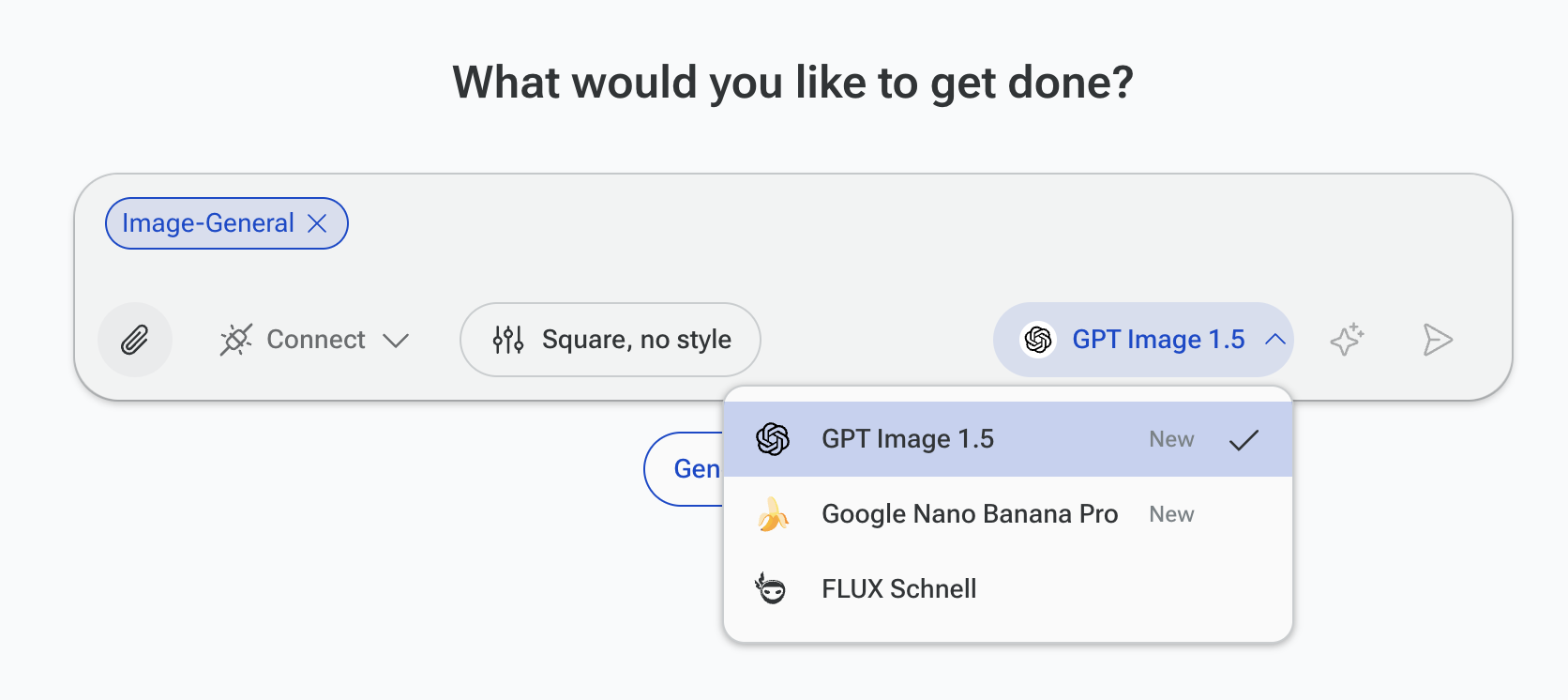
Try Different AI Models
Not all AI models generate images in the same way. Different models have unique styles, strengths, and limitations. We recommend experimenting with multiple models to find the one that aligns best with your vision. Please note that each subscription tier has access to different image models. SuperNinja will only return one image.
Select Preferred Dimensions
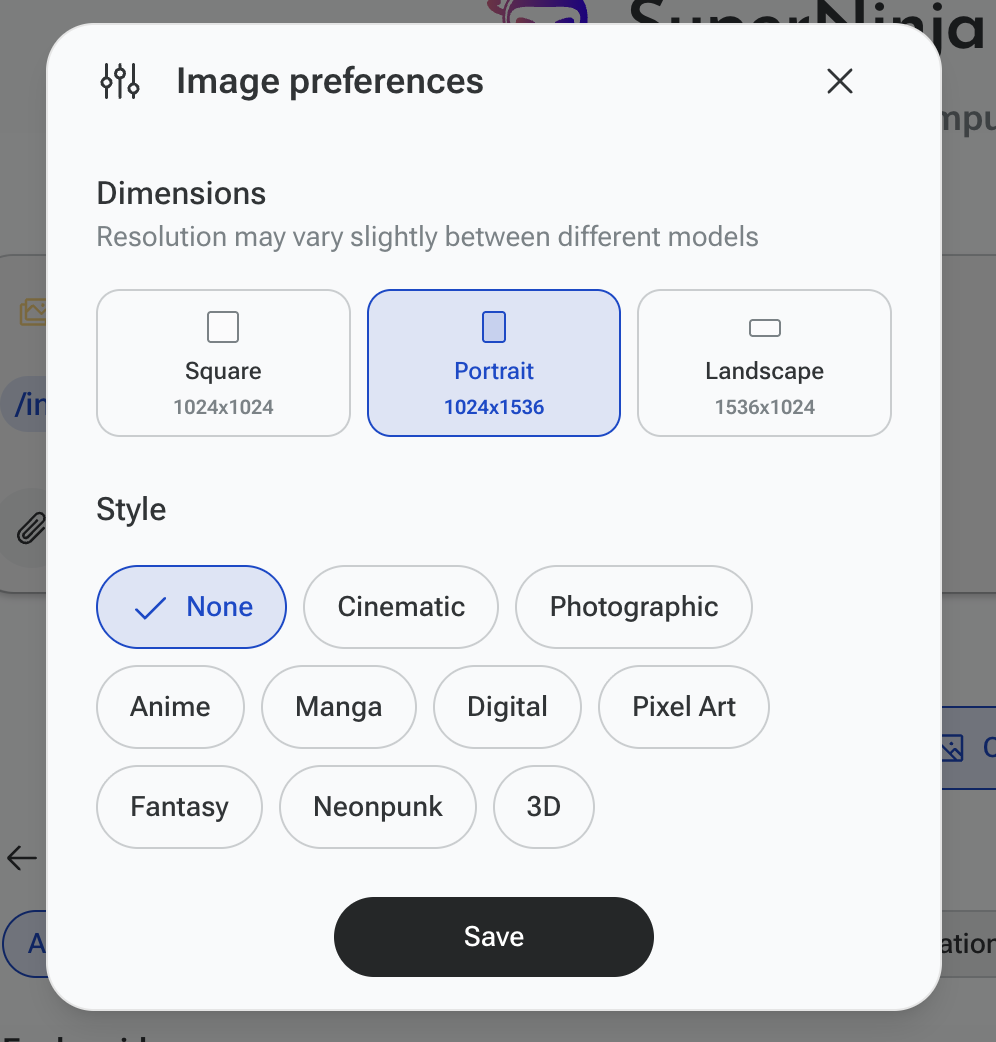
Ninja allows you to customize your image output to fit your specific needs. Simply choose your desired aspect ratio, and let it handle the rest:
Square (1024x1024)
Portrait (1024x1536)
Landscape (1536x1024)
Edit Images in Edit Mode
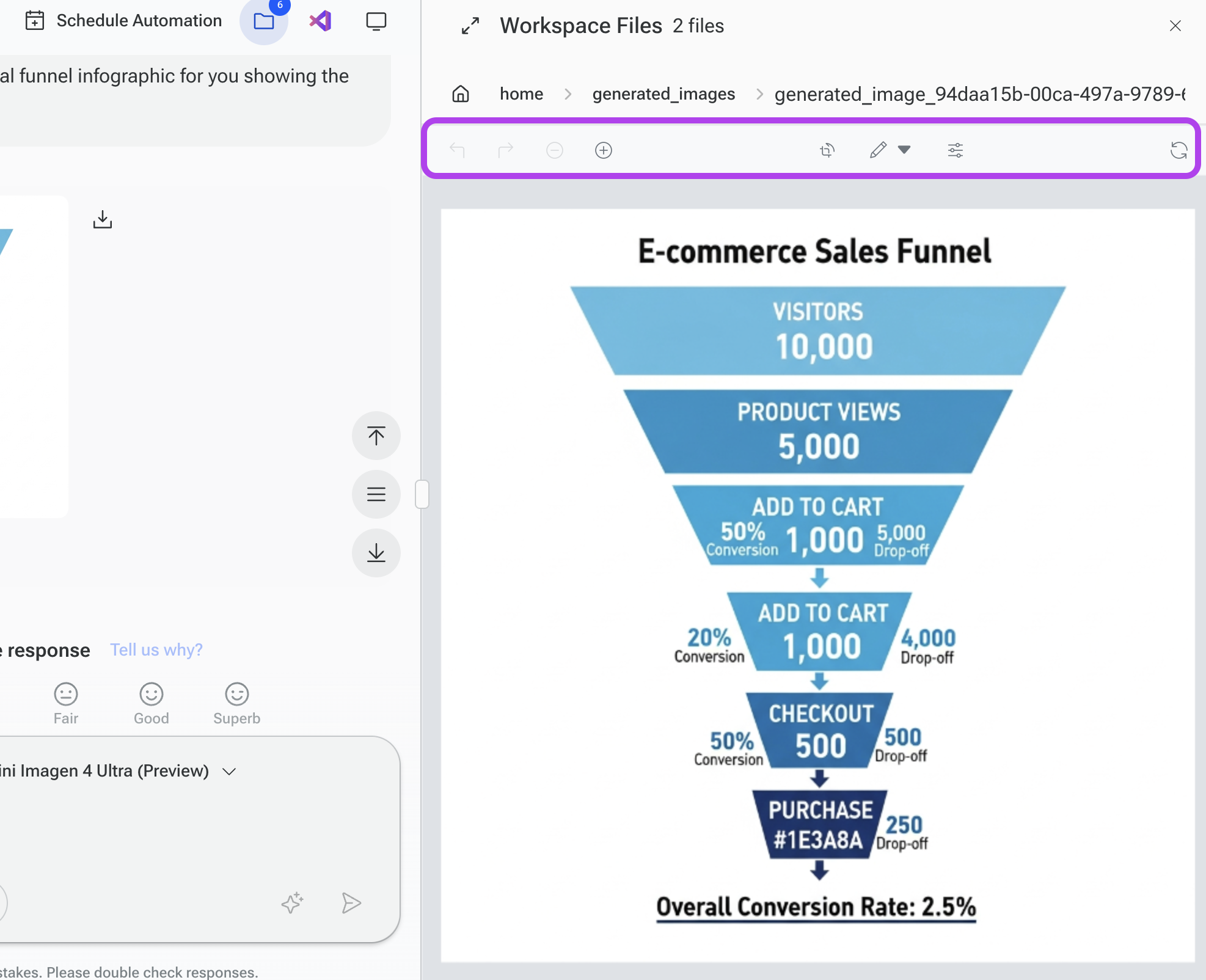
Click on the generated image, or open it from the Workspace Files in the generated_images folder.
From the image editor, you can:
Crop, rotate, and flip the image
Adjust brightness, lighting, transparency, and blur
Use drawing tools such as the pen, line, and arrow
Upload and paste another image on top of the generated image
Add text or annotations
When you're finished, you can save your changes and download the final image to your device.
If you have any questions, please contact us at support@ninjatech.ai or submit a request through this form. We’re here to help!