How to Set Up and Use a 24/7 AI Employee
Last updated: September 9, 2026
NinjaTech AI Employee is a platform for deploying autonomous, role-specific AI agents that can execute complete business tasks from start to finish. Unlike traditional AI chatbots that primarily answer questions or generate text, an AI Employee can plan and perform multi-step tasks, use connected tools, work in a browser, and deliver completed results back to you.
Your AI Employee runs 24/7 on a dedicated cloud computer, can work directly in Slack, Microsoft Teams, or WhatsApp, and can access more than 3,000 integrations through MCP, as well as a full web browser. You give it a goal, and it handles the work end to end, including planning, using the appropriate tools, checking its work, and returning the results.
How to deploy an AI Employee
You can create and deploy an AI Employee directly from your SuperNinja account.
Step 1: Open AI Employee
Log in to your SuperNinja account.
Select AI Employee from the top-left menu.
Complete the project setup form with the information for your AI Employee.
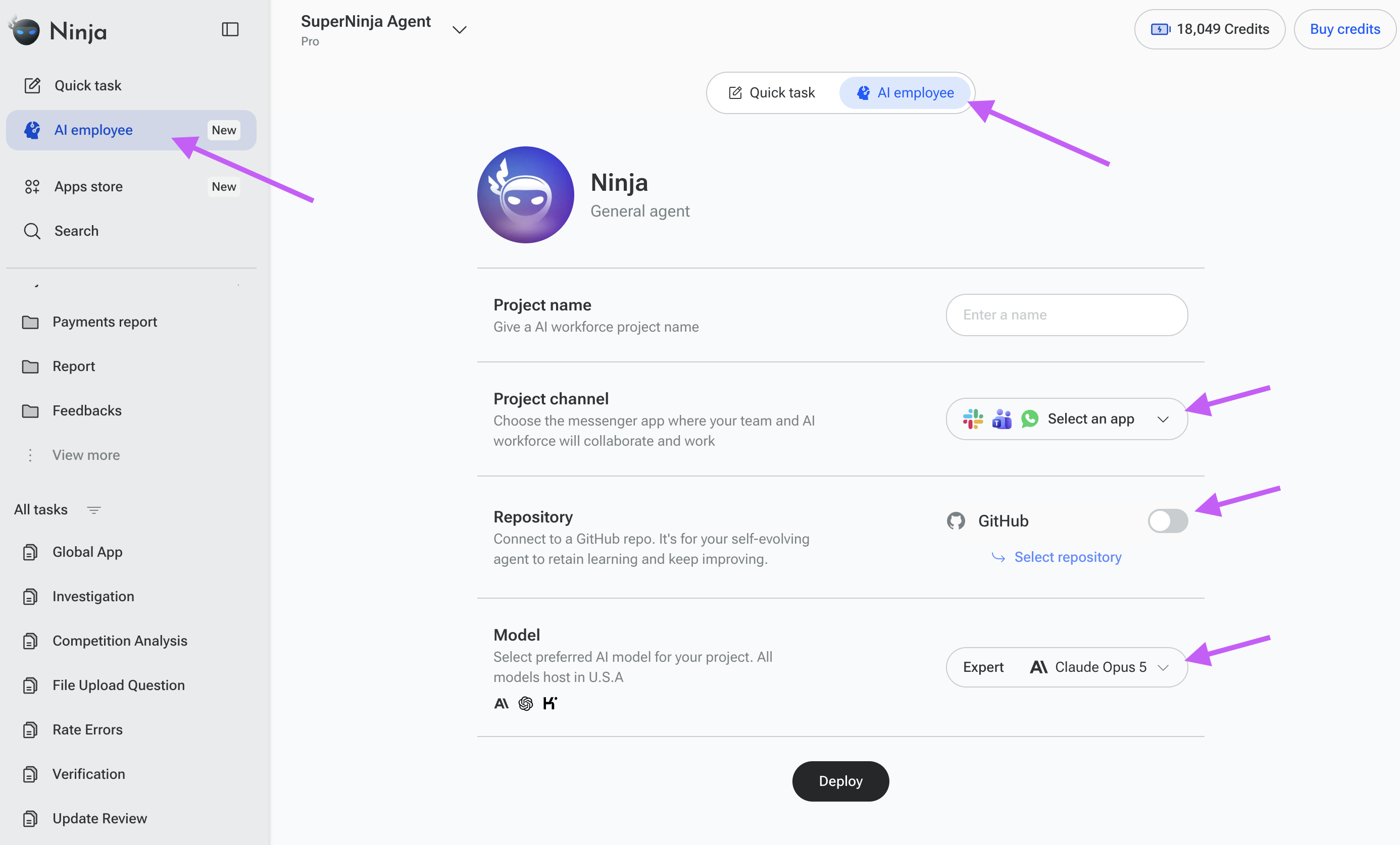
You will be asked to provide:
Project name
Project channel — Choose where you want to communicate with your AI Employee: Slack, Microsoft Teams, or WhatsApp.
GitHub repository
Model — Kimi K3, GPT-5.6, or Opus 5 (You can switch the model from this page at any time.)
Channel or chat — Select the specific Slack channel, Teams channel, or WhatsApp chat where you want the AI Employee to work.
Once you have completed the setup, click Deploy.
Step 2: Start working with your AI Employee
After deployment, SuperNinja installs the AI Employee in the selected channel and provides a link to its activity dashboard.
From the activity dashboard, you can review and manage your AI Employee, including its:
Tool Usage
Live Logs
Recent Prompts
Token Usage Timeline
Cost Analysis (Click on the Total cost)
Set a daily or monthly budget (Click on the Total cost)
Go to the Slack, Teams, or WhatsApp channel you connected during setup. You will see an introductory message confirming that your Ninja AI Employee is ready to work.
You can then send it its first task in any language — by message, voice note, or file.
Your AI Employee delivers completed work back to the channel where you communicate with it.
You do not need to manually select which tool or integration Ninja should use. Simply describe the outcome you want, and Ninja determines which tools are appropriate for each step.
Connect your AI Employee to 3,000+ integrations
In your SuperNinja account, open the deployed project under AI Employee Projects from the top-left menu.
Select Integrations → Connect App.
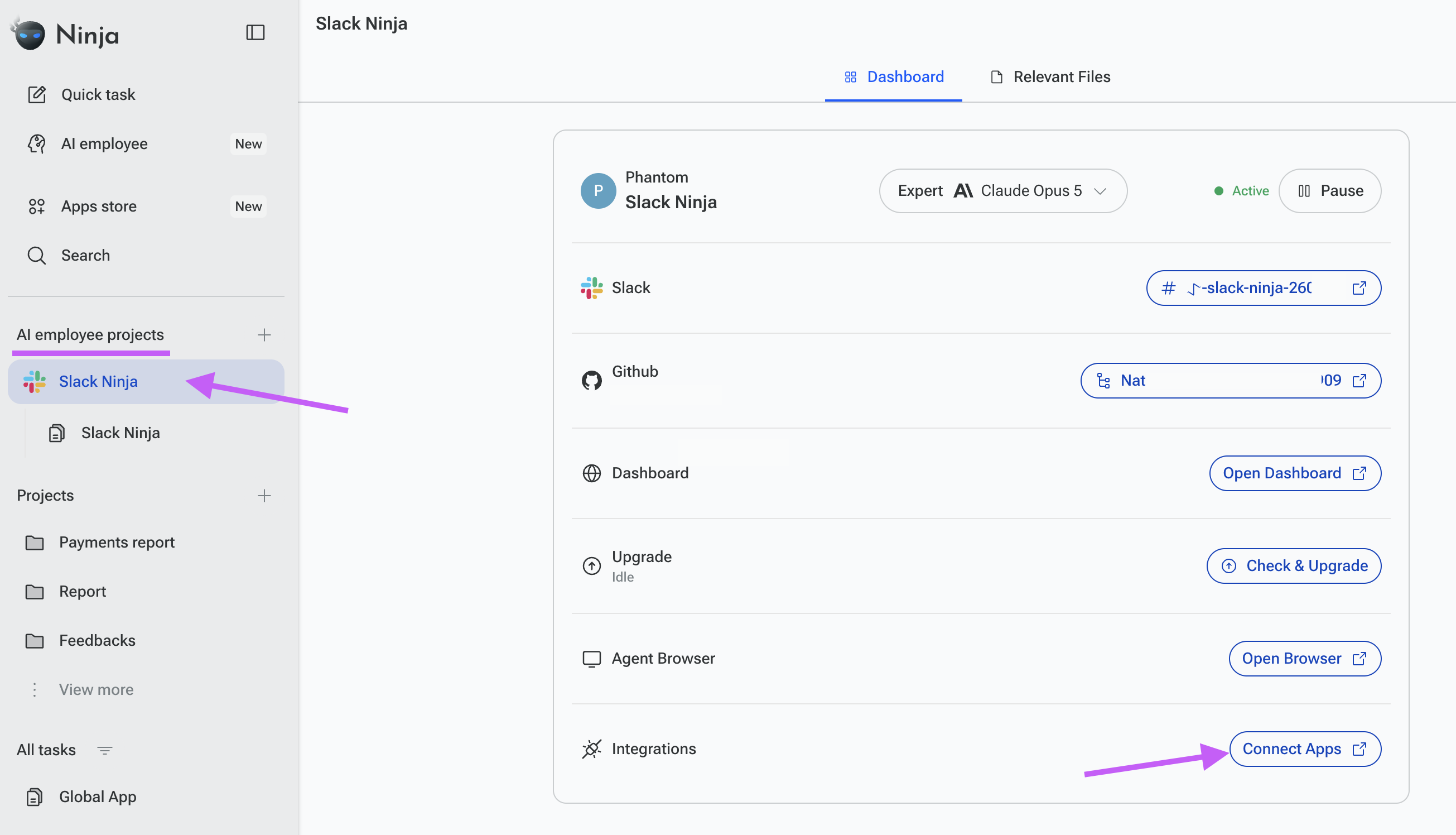
AI Employees can work with more than 3,000+ applications and services through MCP integrations, giving them access to the tools your business already uses.
Depending on the integrations available to your account, your AI Employee can work with services such as Slack, Gmail, Google Calendar, GitHub, Jira, Linear, Notion, Salesforce, HubSpot, Stripe, Airtable, Asana, LinkedIn, AWS, and many others.
Integrations are particularly useful when a task requires your AI Employee to retrieve information, update records, create documents, send messages, manage projects, or perform actions across multiple applications.
For example, instead of asking Ninja to explain how to update a Salesforce record, you can ask it to update the records for you.
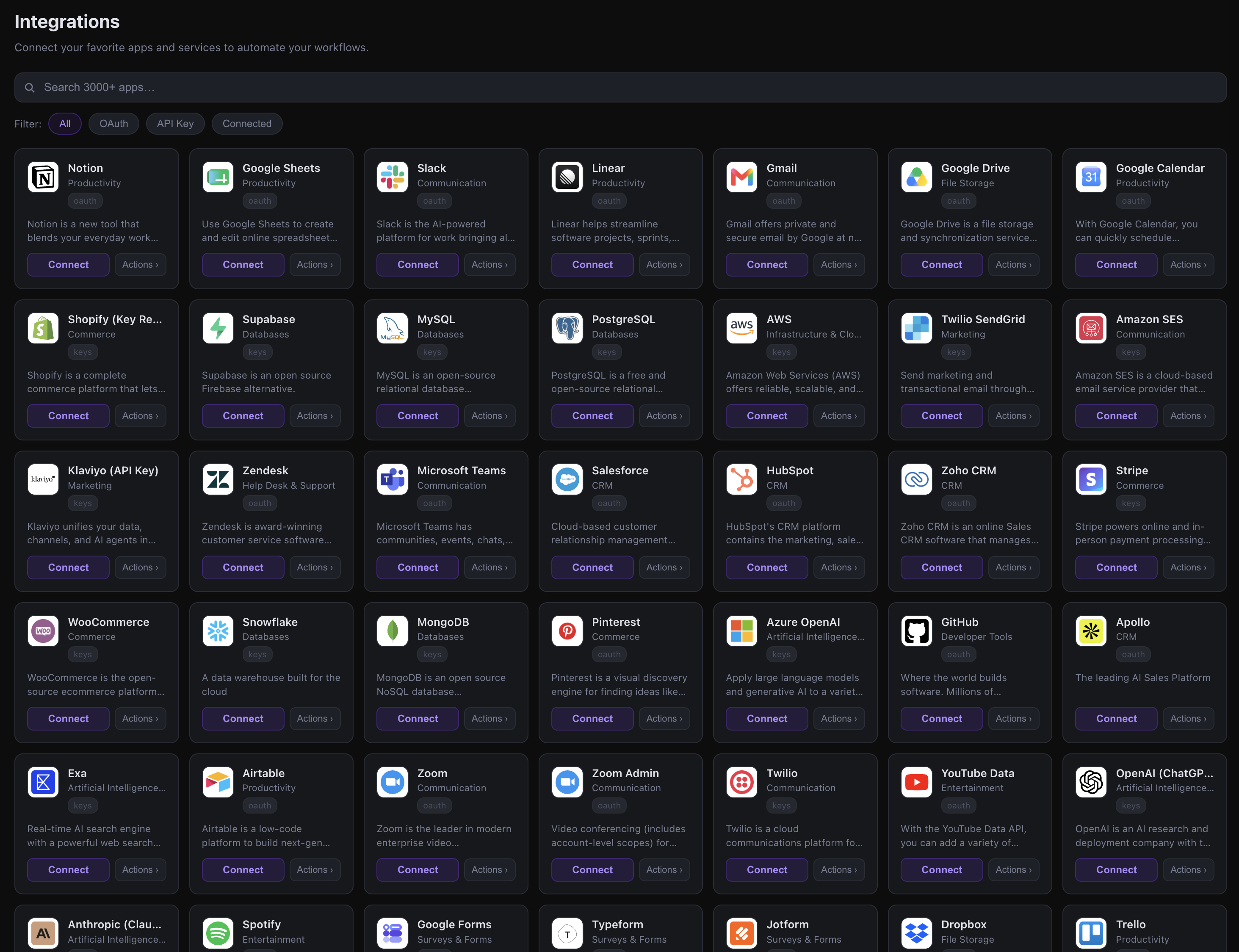
Manage your AI Employee from the Dashboard in SuperNinja
After deploying an AI Employee, you can manage its configuration and activity from the AI Employee Dashboard.
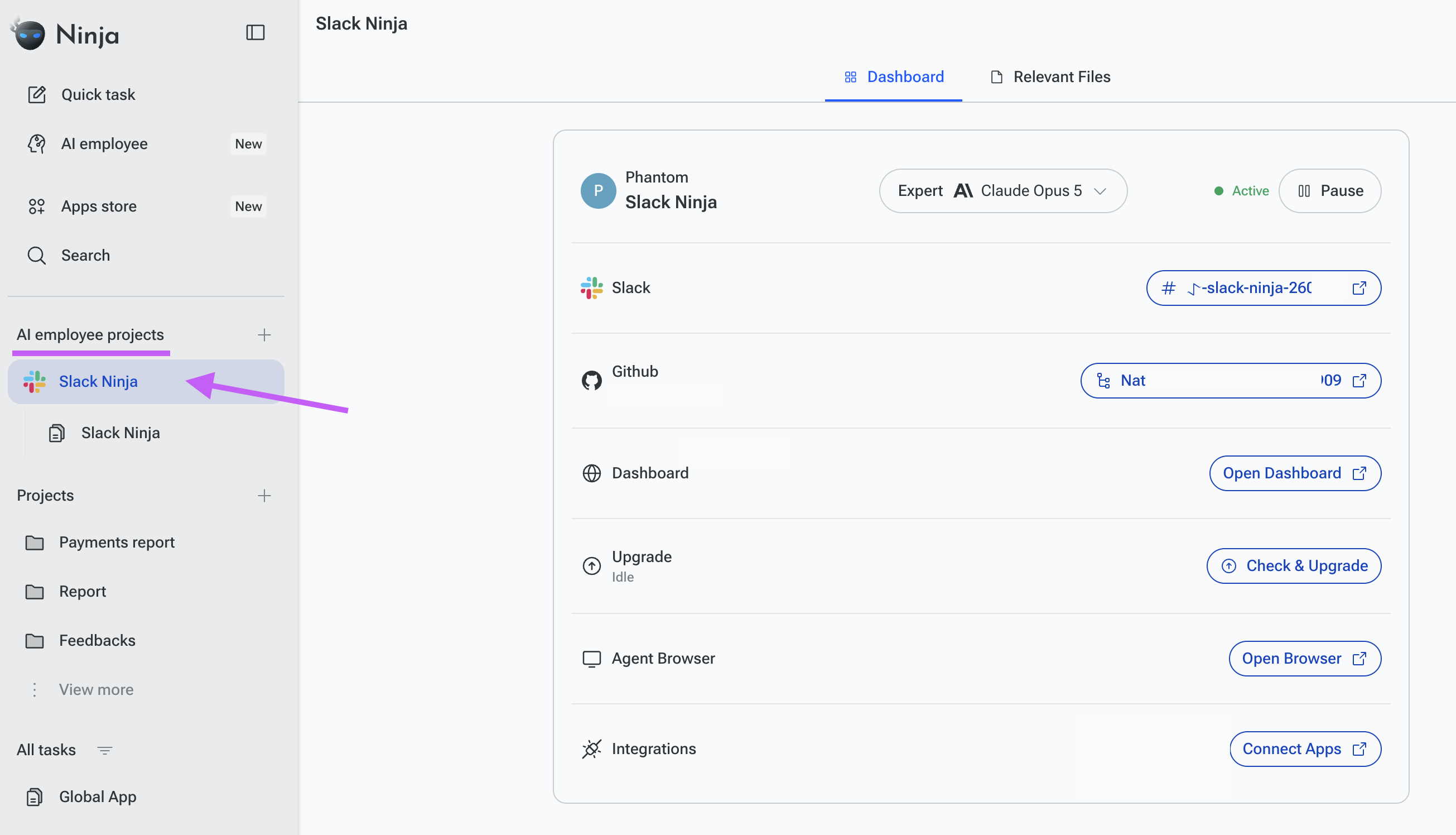
The Dashboard allows you to control whether your AI Employee is active, monitor its usage, change the model it uses, and update the Employee to the latest version.
Pause your AI Employee
You can pause your AI Employee at any time if you do not currently need it to work.
Pausing the Employee stops it from performing tasks in the channel where it was deployed and prevents it from continuing to consume credits for its active sandbox.
An AI Employee consumes 14 credits per hour for each deployed sandbox, starting from the time the sandbox is deployed.
If you do not need your AI Employee to work continuously, pausing it when it is not in use can help prevent unnecessary credit consumption.
Resume your AI Employee
You can resume a paused AI Employee whenever you are ready to continue working with it.
When you resume it, the AI Employee can continue from where it stopped and retain access to the relevant context and progress from its previous work. You do not need to create a new Employee or start the task from the beginning.
This makes it useful for longer-running projects that you may want to pause and continue later.
Change the AI model
You can change the model assigned to your AI Employee from the Dashboard at any time.
This allows you to select a different model depending on the type of work you need the Employee to perform, such as tasks that require more advanced reasoning, faster responses, or different model capabilities.
After changing the model, your AI Employee will use the newly selected model for its work.
Check & Upgrade
The Dashboard also includes a Check & Upgrade option.
NinjaTech continuously improves AI Employees by releasing new versions with improved capabilities, performance, and features. Use Check & Upgrade to check whether a newer version is available and upgrade your AI Employee to the latest version we have released.
Keeping your AI Employee updated ensures that you have access to the latest improvements as we continue to make AI Employees more capable and powerful.
What can an AI Employee do?
You can delegate repetitive, multi-step business work across different functions.
Research and reports
For example:
"Find the top 10 competitors for our product, compare their pricing and features, and create a one-page summary."
Lead generation and outreach
For example:
"Find 50 founders of seed-stage fintech companies in New York and prepare a personalized introduction for each one."
Recruiting
For example:
"Find 20 senior backend engineers who match this job description and prepare personalized outreach messages."
Operations and data entry
For example:
"Update these 30 Salesforce records using the information in this spreadsheet."
Or:
"Organize these expense receipts and prepare the expense reports."
Travel and bookings
For example:
"Find the cheapest direct flight from SFO to JFK next Friday and add the selected flight to my calendar."
Creative work
For example:
"Create a flat-style logo for a coffee app called Brewly."
You can also ask Ninja to edit images, create banners, or develop a landing-page hero concept.
Is NinjaTech secure and compliant?
Each AI Employee runs in its own secure, dedicated virtual machine, with isolation between agents and threads.
NinjaTech AI uses encryption for data in transit and at rest, with SSO and audit trails available. SOC 2 Type II examination is in progress.
Your data is not used to train AI models.
Best practices for briefing your AI Employee
For the best results, describe the outcome you want, rather than giving instructions for every individual step.
Instead of:
"Open this website, search for these companies, copy their information into a spreadsheet, then calculate..."
Try:
"Research these companies, compare their pricing and key features, and create a spreadsheet with your findings."
You can also provide important constraints, such as deadlines, preferred sources, formatting requirements, budgets, or specific criteria that Ninja should follow.
If the task changes while Ninja is working, simply send another message in the channel or reply in the relevant thread with the additional instructions.