How to Generate an Image
Last updated: September 9, 2026
Image Agent allows you to generate images for different purposes, including business and personal use. With SuperNinja, you can create high-quality visuals by simply describing what you want to see. This guide explains how to use Image Agent.
How to Use the Chat Agent
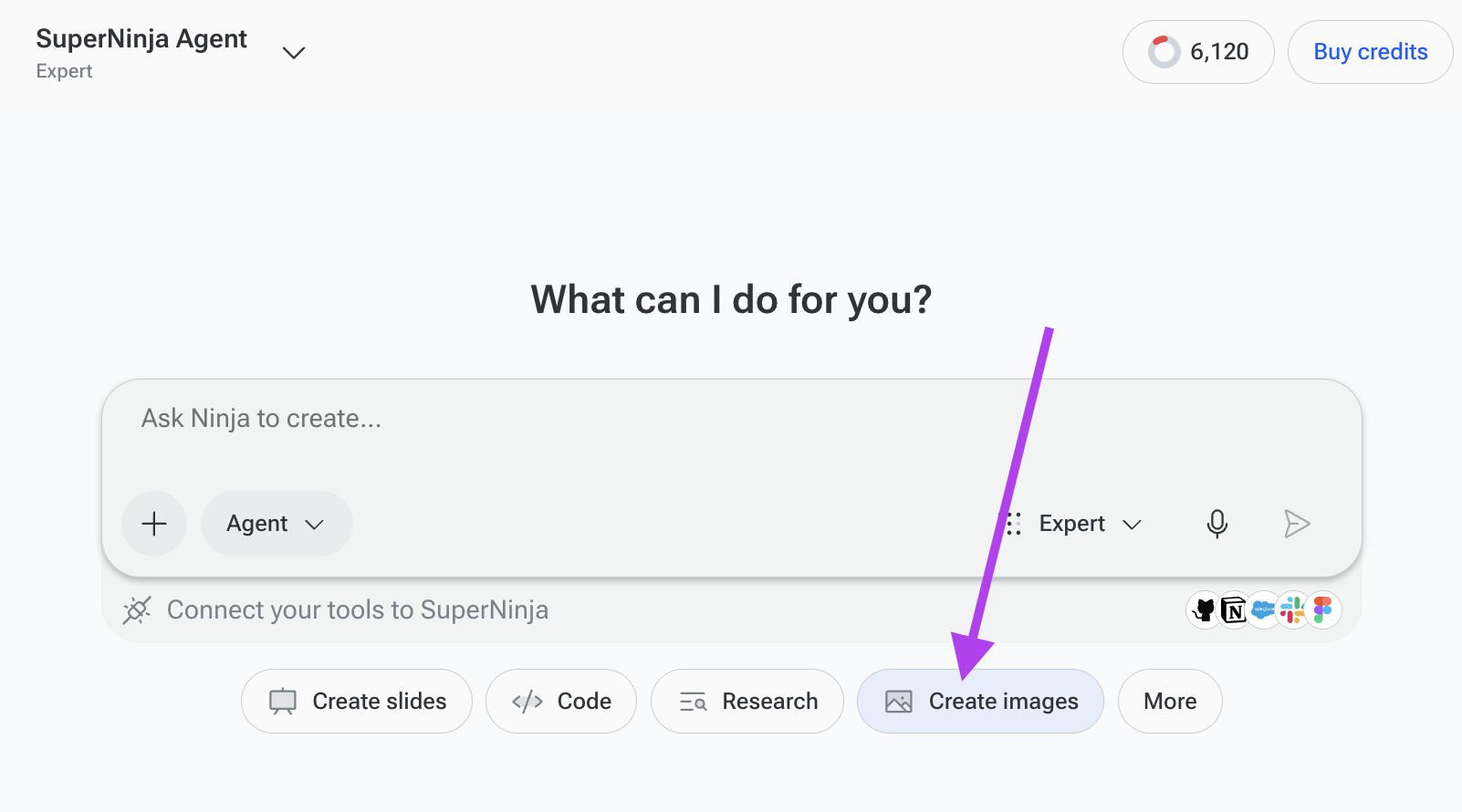
Start a new task to open a fresh conversation.
Under the prompt box, choose Create Images Agent from the available categories.
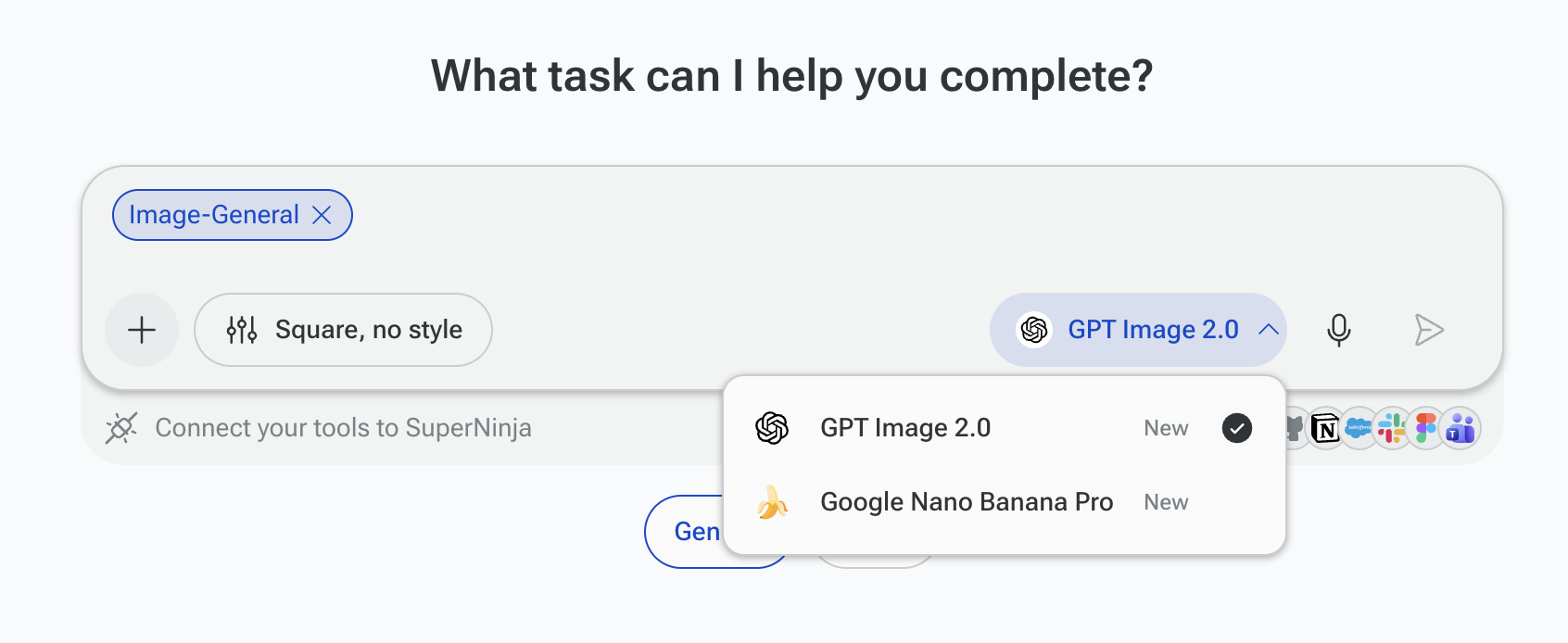
Select your preferred external AI model from the dropdown menu.
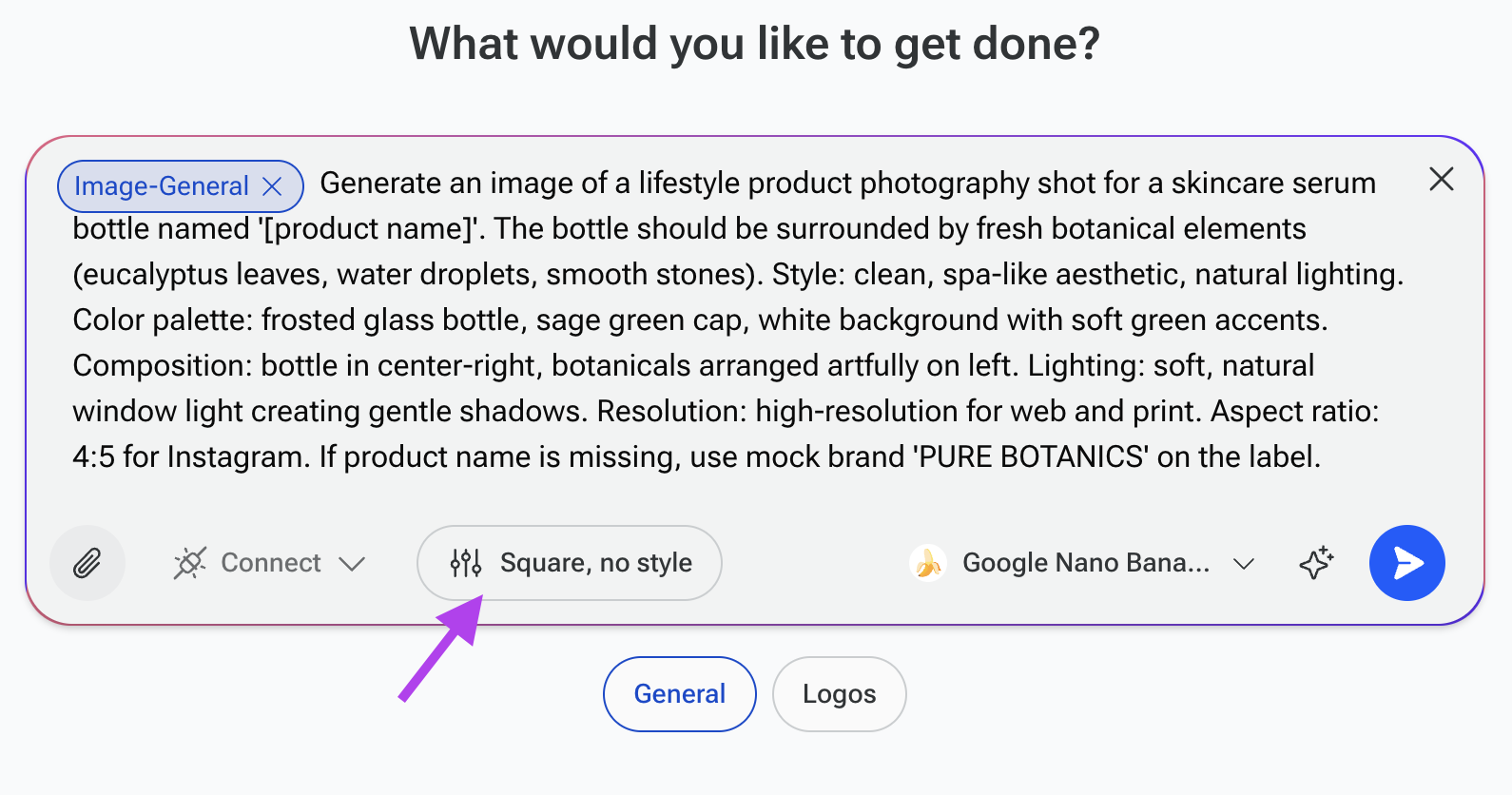
Enter your question or instructions in the prompt field.
Click Send
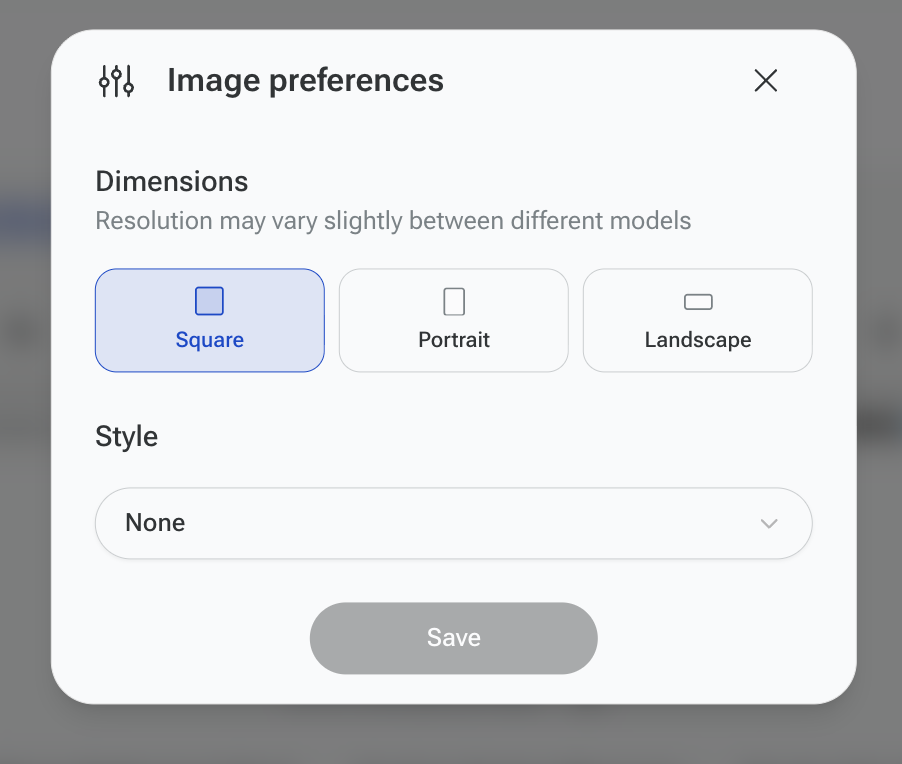
SuperNinja allows you to customize your image output to fit your specific needs. Simply choose your desired aspect ratio, and let it handle the rest:
Square (1024x1024)
Portrait (1024x1536)
Landscape (1536x1024)
Downloading Generated Images
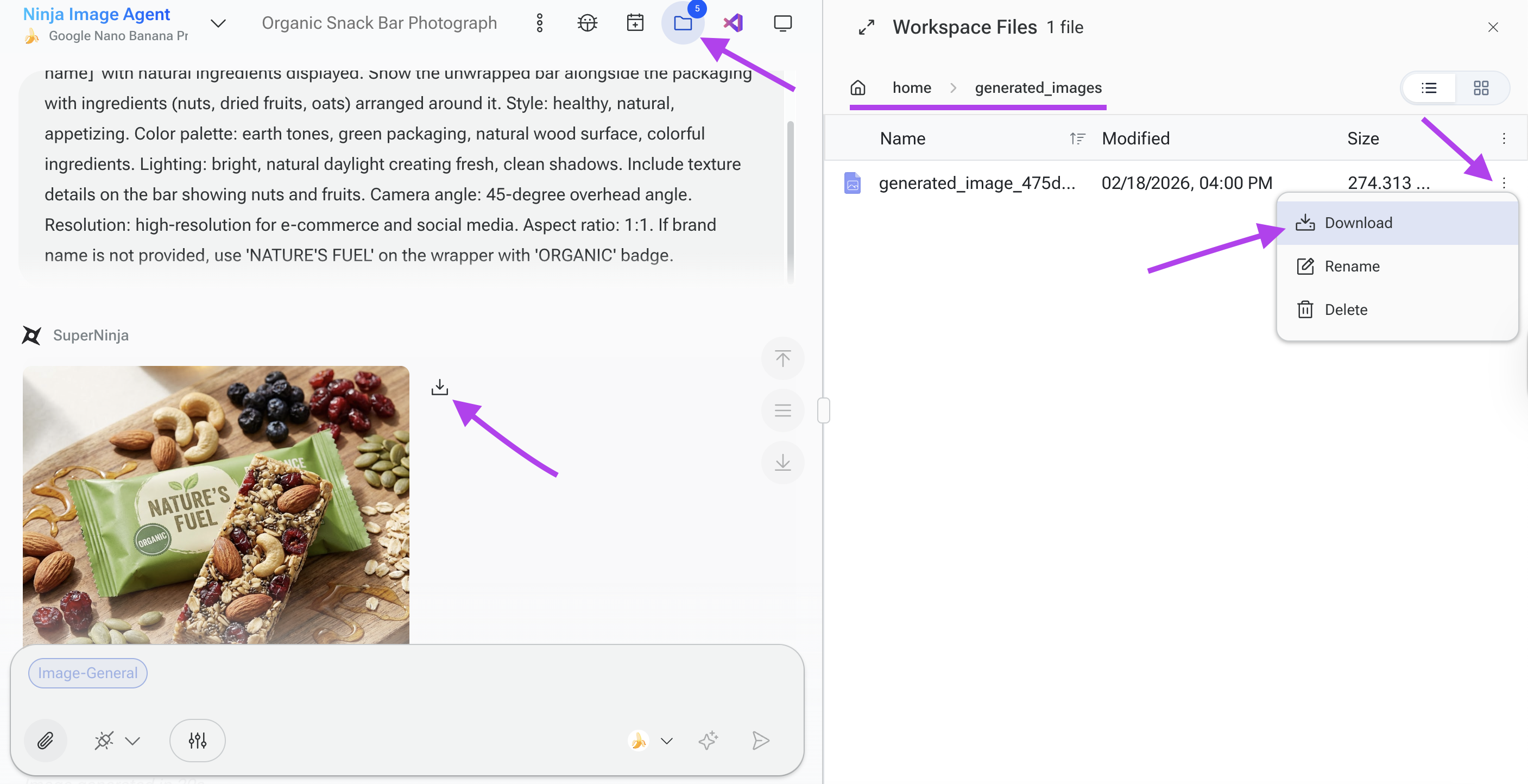
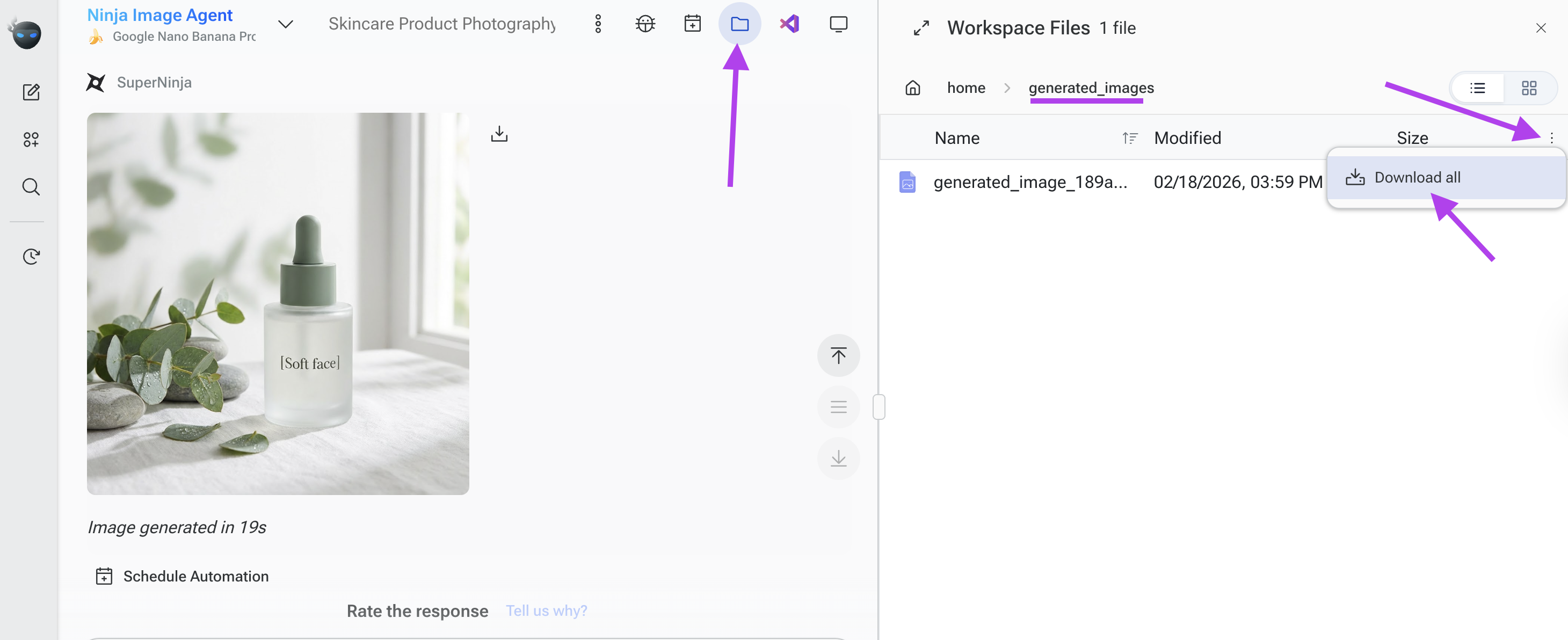
There are several ways to download your generated images. After an image is generated, you will see a Download icon to the right of the image. Click the icon to automatically download the image to your device. You can also download images from the Generated Images folder:
Click the folder icon in the top right corner.
Open the Generated_images folder
Click the three dots (⋯) next to the size column.
Select Download to download a single image, or choose Download All to download all images at once.
The files will automatically download to your device.
Edit Images in Workspace
You can also open your image from the Workspace Files section. From the image editor, you can:
Crop, rotate, and flip the image
Adjust brightness, lighting, transparency, and blur
Use drawing tools such as the pen, line, and arrow
Upload and paste another image on top of the generated image
Add text or annotations
This allows you to customize your image before downloading or sharing it.
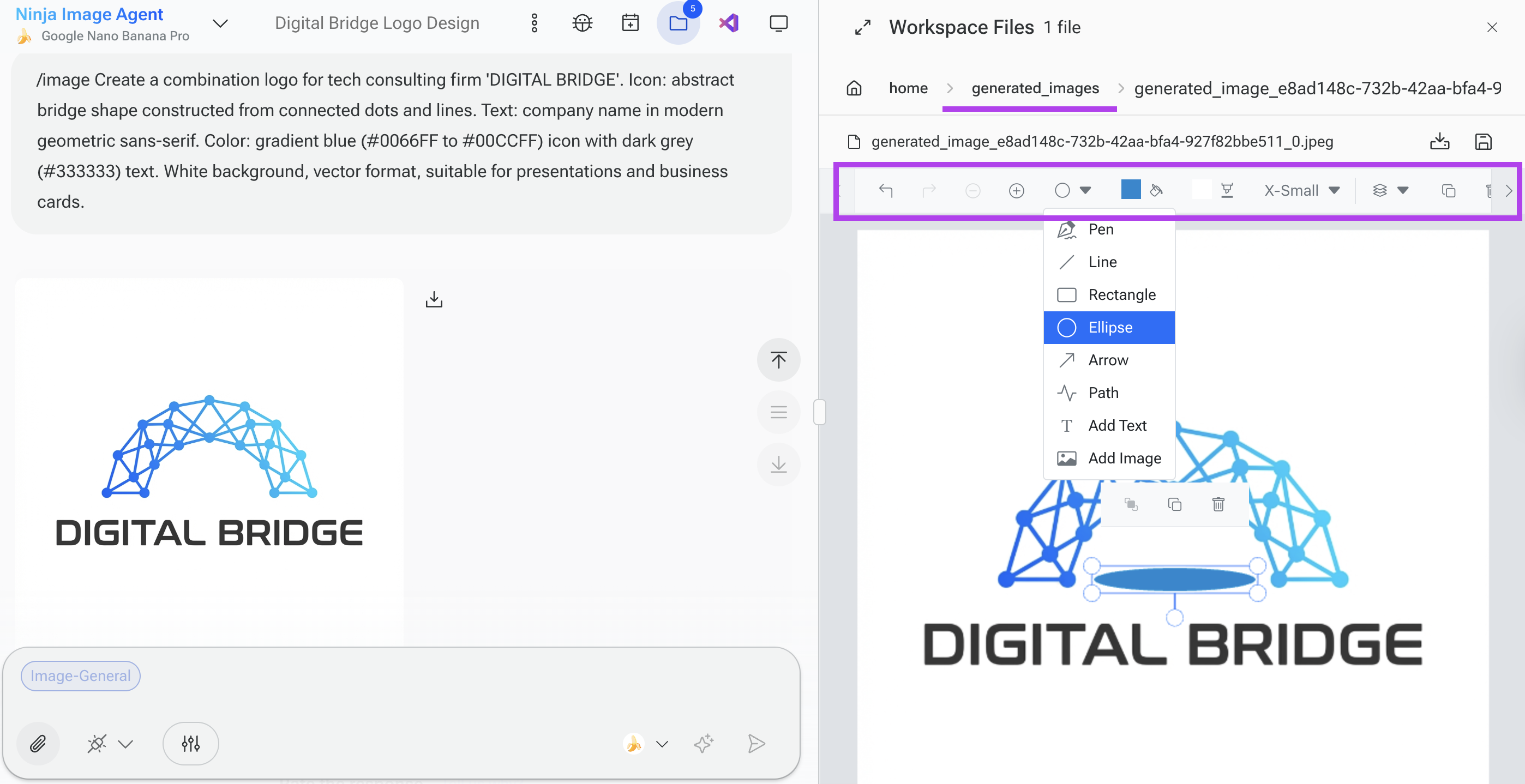
When you're finished, you can save your changes and download the final image to your device.
Read our article on Best Practices for Image Generation.
If you have any questions, please contact us at support@ninjatech.ai or submit a request through this form. We’re here to help!