How to Use Code Agent
Last updated: June 26, 2026
SuperNinja’s Fast Deep Coder is an advanced AI coding assistant that helps you code faster and better by running on its own virtual machine (VM) environment. It’s designed to accelerate your coding workflow, reduce iteration time, and maintain high accuracy in code generation.
Why Use Code Agent?
5–10x Faster Coding: Reduce iteration cycles from 10–15 minutes to just 1–2 minutes.
Persistent Context: Project states maintained between iterations, allowing for focused creation.
High Accuracy: Achieves a SWE-Bench verified score of 69.6.
Dedicated VM Environment: Each project thread gets its own VM, supporting branching, commits, and pull requests.
How to Use Code Agent
Start a new task to open a fresh conversation.
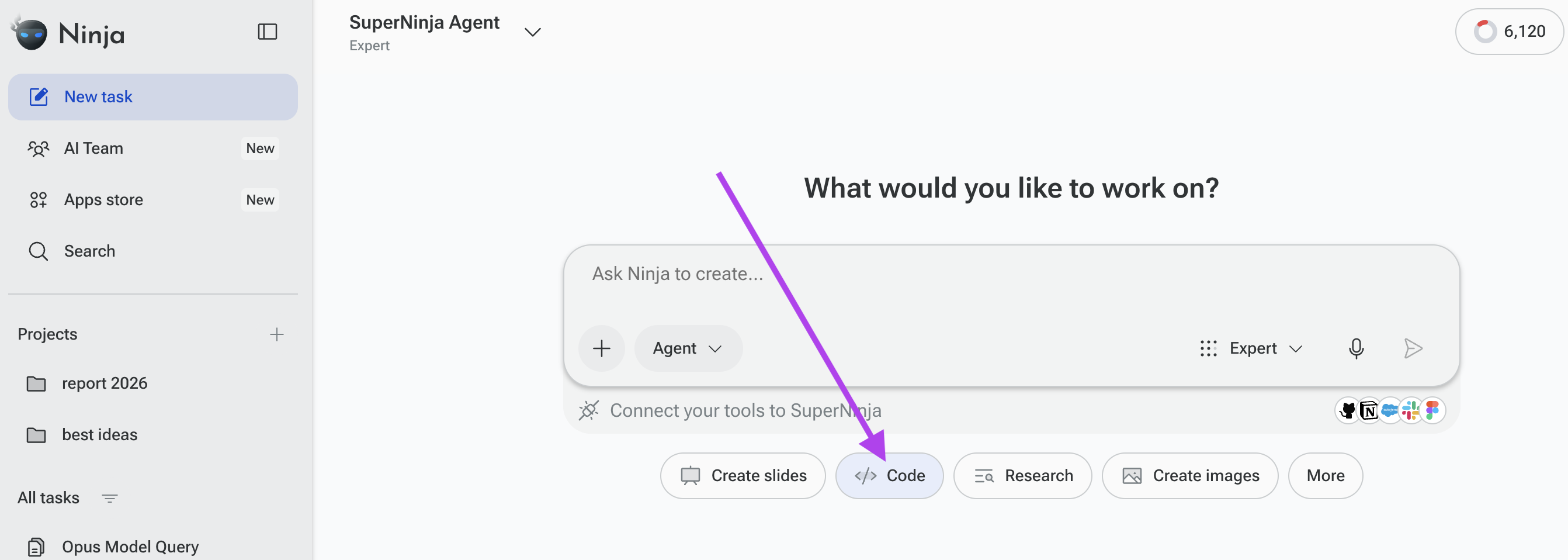
Under the prompt box, choose Code Agent from the available categories.
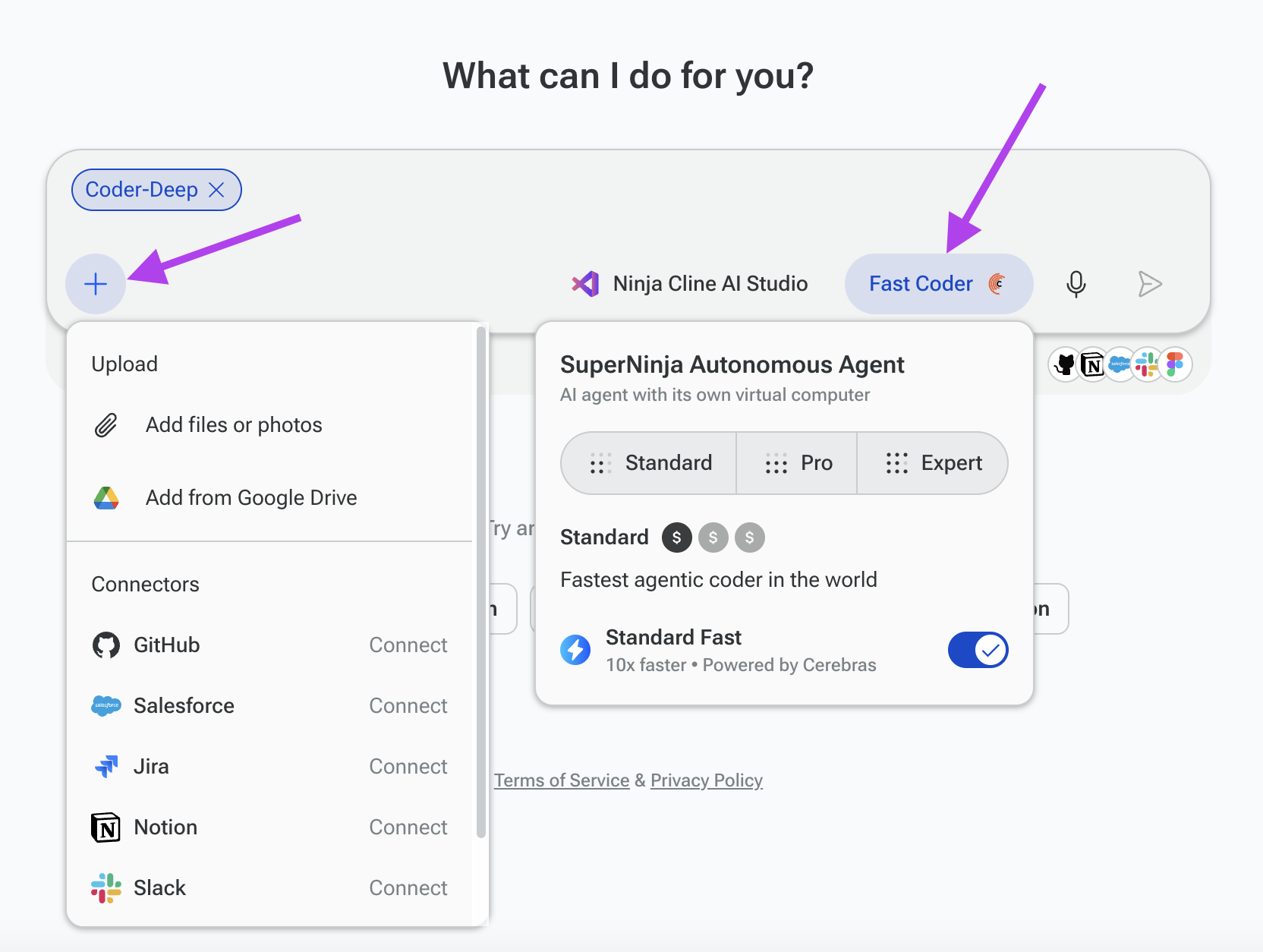
Then, select the mode:
Standard — everyday coding and versatile tasks without restrictions (coding, research, etc.)
Pro and Expert — advanced, resource-intensive tasks requiring detailed analysis or processing
Fast — high-speed execution for coding or research tasks, delivering quick results without sacrificing quality
Attach Files (Optional): Include any necessary files that the AI may need to complete your request.
Provide clear instructions for the research task in the prompt box.
Press Send to start the conversation with the selected model.
Using MCP Connectors for Coding Tasks
For coding tasks, you can connect and use an MCP connector. Available connectors:
GitHub
Slack
Jira
Salesforce
In your prompt, clearly mention that you want to use a specific MCP connector (for example, “Use the GitHub MCP connector to review this repository”). The agent will then use the selected connector to interact with the external platform as part of your task.
To learn how to connect the GitHub MCP connector, read here: Connect SuperNinja to MCP GitHub Server
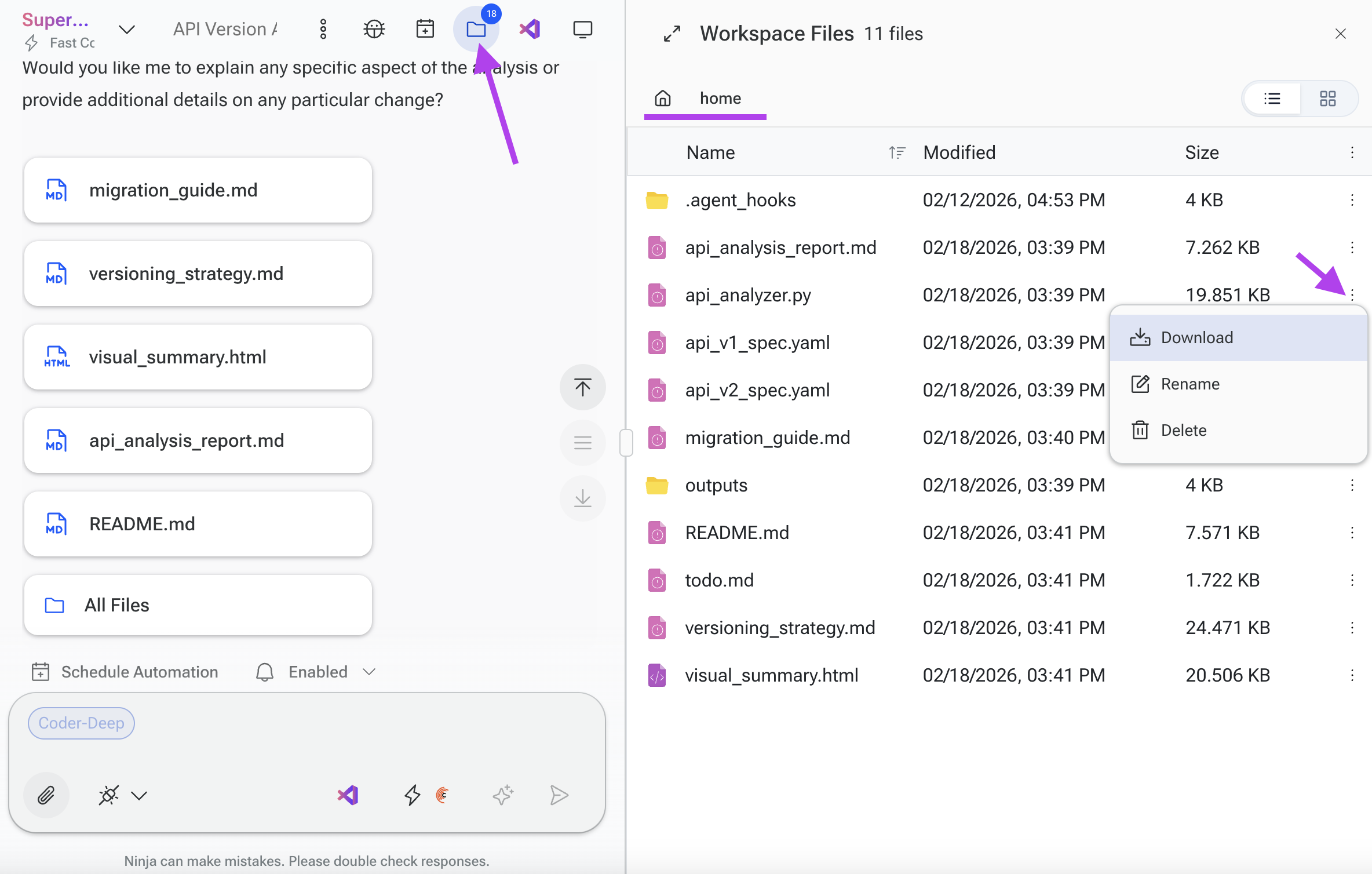
To view or download all your workspace files, click the folder icon in the top-right corner.
Please note that each chat thread is restricted to the agent selected at the start of the conversation. For example, if you begin a conversation using the Code Agent, the entire thread will remain assigned to the Code Agent by default. It is not possible to switch to a different agent within the same thread.
If you have any questions, please contact us at support@ninjatech.ai or submit a request through this form. We’re here to help!