How to update your payment method
Last updated: March 19, 2026
If you need to update your payment information due to a new card, an expired card, or a failed payment, you can easily do this through your account settings.
For Stripe Subscriptions:
To update your payment method for payments made using a card, please follow these steps:
Log in to your NinjaTech AI account.
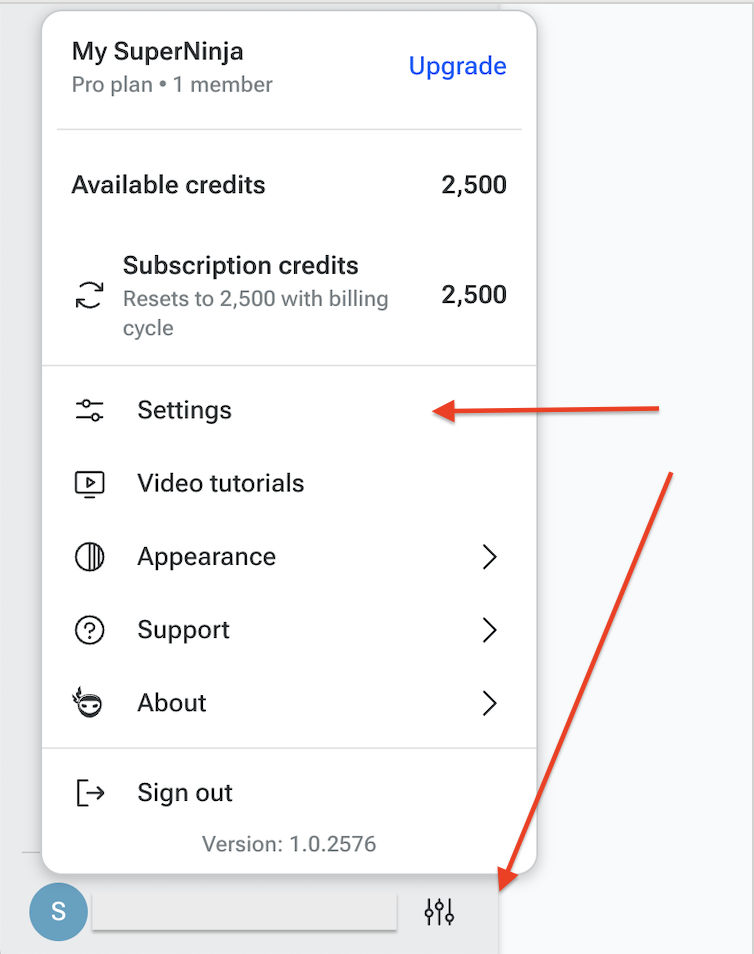
Click on your avatar (initials icon) in the lower left corner.
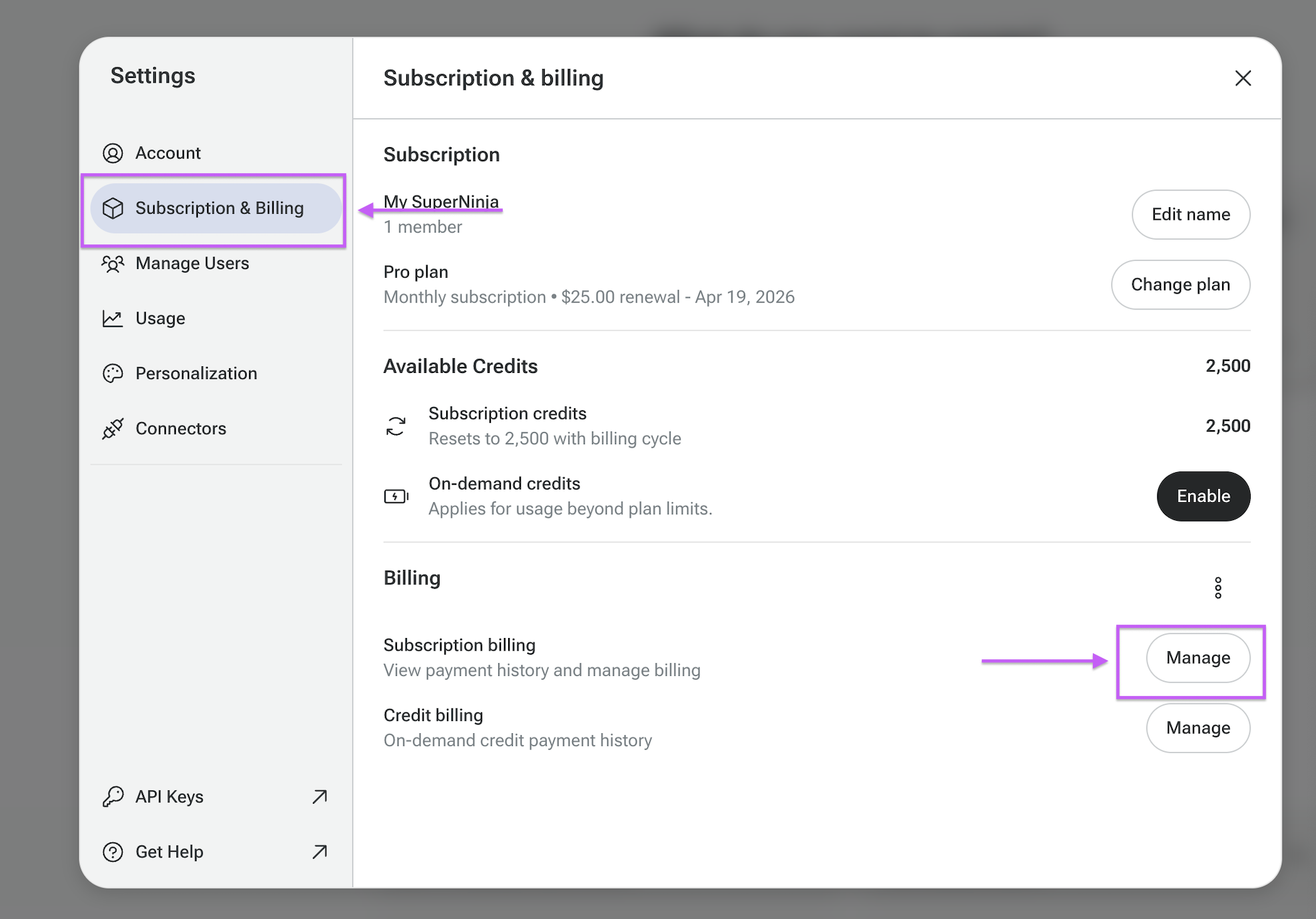
Go to the "Subscription" section.
Click "Manage" next to Subscription billing.
Remove the old card and add your new payment method.
For PayPal Subscriptions:
Subscriptions billed through PayPal must be managed in your PayPal account, as our Settings page won’t show a “change card” option. To switch cards:
Log in to PayPal and go to Wallet.
Add your new card (or select an existing one) and set it as your default payment method.
This ensures future NinjaTech AI charges use the updated card.
If you want to switch from PayPal to direct card billing with us:
Cancel your current PayPal subscription in PayPal.
Return to SuperNinja and subscribe again using your new card on our site when the current billing period ends.
What happens if my payment fails?
If your payment fails, the system will attempt to charge your account a few times. If the payments continue to fail, your subscription will be automatically canceled. Once canceled, you'll need to subscribe again to continue using the service.
If you're having trouble updating your payment method or continue to experience issues, try using a different browser, payment method, or network connection. If problems persist, please contact our support team for assistance at support@ninjatech.ai or submit a request through this form. We’re here to help!