SuperNinja Autonomous Agents
Last updated: June 26, 2026
SuperNinja is an all-in-one general AI assistant that can help you with a wide range of tasks — from creating presentations and writing code to conducting research and building websites. It is powered by multiple specialized agents and leading AI models.
Note: Each chat thread is tied to the agent you select at the start of the conversation. For example, if you open a thread with the Chat Agent, that thread will remain assigned to the Chat Agent. It is not possible to switch agents within the same thread. To use a different agent, start a new conversation.
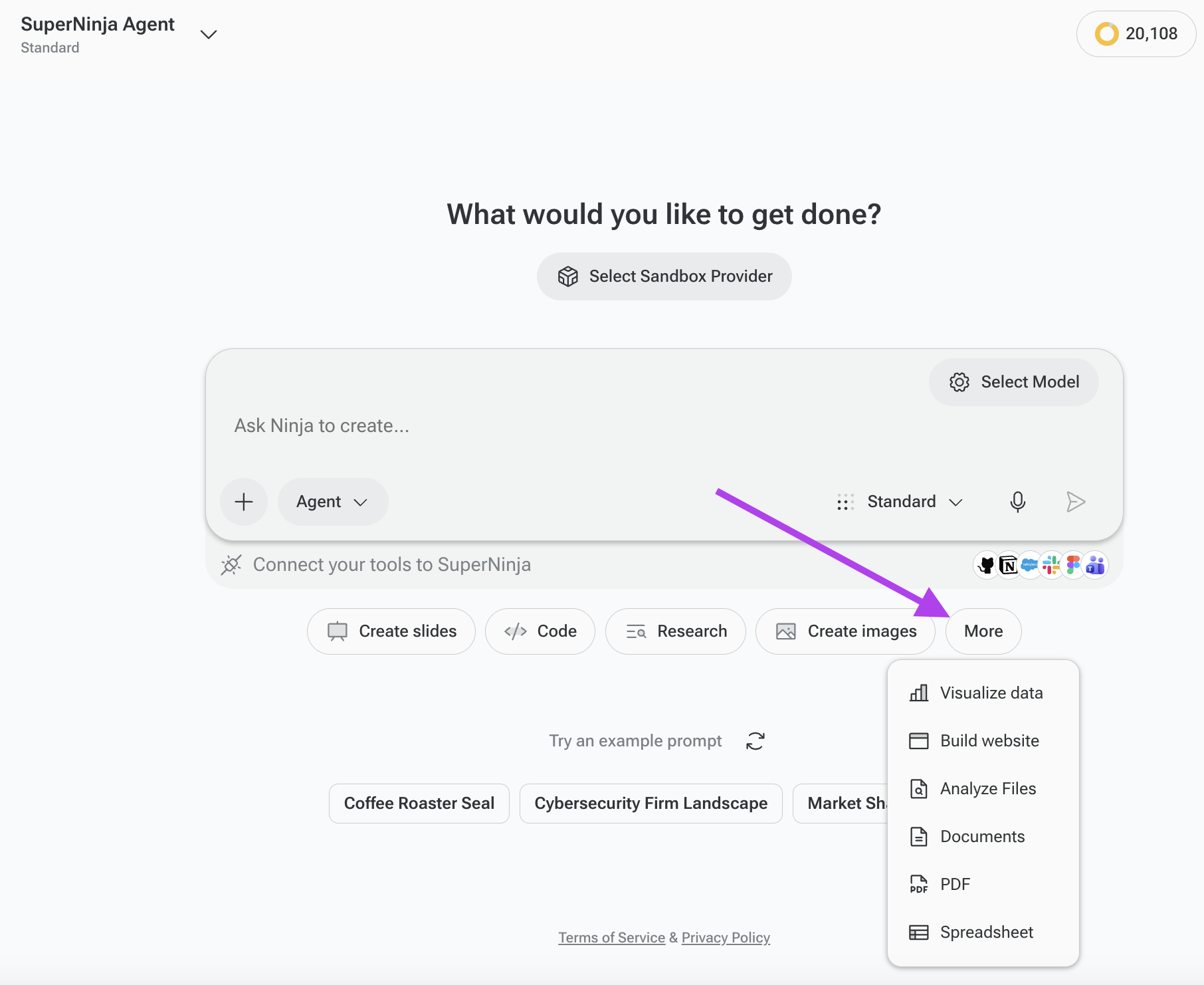
SuperNinja currently includes eleven agents:
Slides Agent — Create and modernize PowerPoint presentations
Code Agent — Write, debug, and optimize code across languages
Image Agent — Generate images from text descriptions
Website Agent — Build, deploy, and share web applications and landing pages
Analyze Files Agent — Extract insights from documents, spreadsheets, and images
Data Visualization Agent — Turn raw data into visual representations
Research Agent — Conduct deep research with citations
PDF Agent — Create and edit PDF documents
Documents Agent — Create and edit Word documents
Spreadsheet Agent — Create and edit Excel files
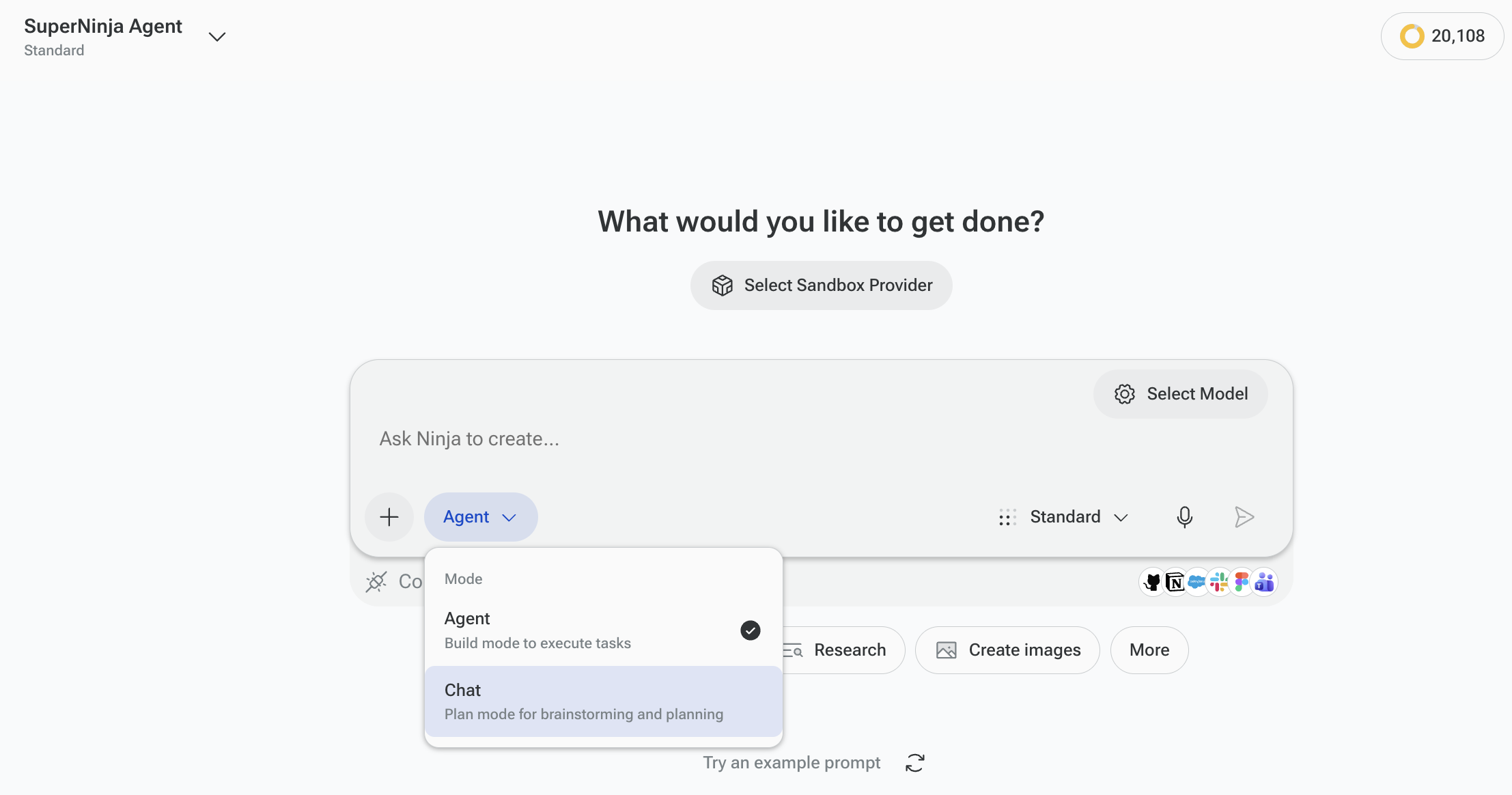
Chat Mode — Brainstorm, write, and have in-depth conversations
The sections below explain what each agent does, when to use it, and how to get started.
1. Slides Agent
The Slides Agent creates PowerPoint presentations (.pptx format) that are ready to download, edit, and present.
Three Ways to Create Presentations
From Scratch — Describe your topic, audience, and goals, and the agent builds a complete presentation. It selects layouts, generates content, and applies design elements automatically.
Modernize an Existing Deck — Upload an existing presentation, and the agent redesigns it with updated visuals and improved formatting while keeping your original content.
From Speaker Notes — Provide your speaker notes or talking points, and the agent turns them into a designed slide deck. This is useful when you already know what you want to say and need the visual component to match.
Available Modes
How to Use
Describe the topic and purpose of the presentation, your target audience, any branding or color preferences, the approximate number of slides, and whether you want charts, infographics, or images. The more detail you include, the closer the first draft will be to what you need.
2. Code Agent
The Code Agent writes, debugs, refactors, and explains code across a wide range of programming languages and frameworks. It is useful for building new features, fixing bugs, or finding a better approach to a coding problem.
How to Use
State the programming language, describe the task or problem, include any constraints or requirements, and specify the expected input and output. If you are debugging, paste the error message and the relevant code. If you are building something new, describe the functionality you need.
3. Image Agent
The Image Agent generates images from text descriptions. You can use it to create visuals for marketing materials, social media, concept art, product mockups, illustrations, and similar purposes.
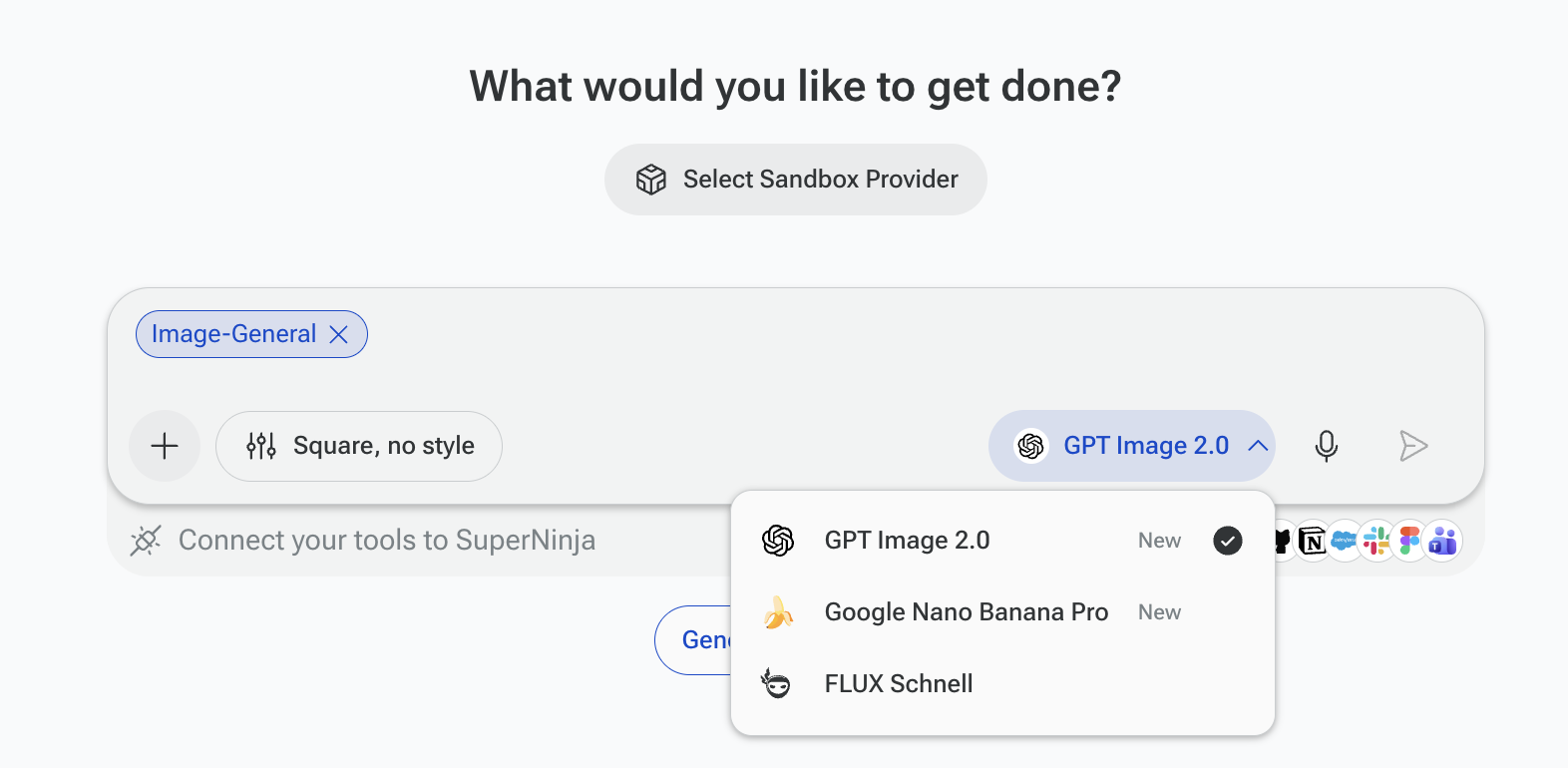
Available Models
GPT Image 2.0 (by OpenAI) Generates highly realistic images with strong prompt accuracy and reliable text rendering inside images. Up to 4x faster than its predecessor. Good choice for product visuals, UI mockups, infographics, and any task where the output needs to closely match a detailed description.
Nano Banana Pro (Google's Gemini 3 Pro Image) Google's most advanced image model. Stands out for flawless text rendering in multiple languages, up to 4K resolution output. Best for complex compositions, multilingual marketing materials, detailed infographics, and professional design work.
Flux Schnell (by Black Forest Labs) A lightweight, fast model optimized for speed. Ideal for rapid prototyping, quick drafts, and high-volume generation where you need results fast and plan to iterate. Not the top choice for fine detail or photorealism.
How to Use
Write a prompt that describes the subject, composition, style, lighting, and color palette. If there are elements you want to avoid, mention those as well. Select the model that matches the aesthetic you need.
4. Website Agent
The Website Agent builds and deploys web applications and landing pages. It writes real code, and each project runs in a dedicated virtual machine, giving you full control over the codebase.
What's Included
Full Code Ownership — All source code belongs to you. You can export it, version-control it, or host it anywhere.
Custom Integrations — Connect third-party APIs, databases, analytics tools, payment processors, and other services as needed.
Unlimited Revisions — You can request changes to the design, content, or functionality at any time.
A/B Testing — Set up tests to compare different versions of your pages.
SEO Optimization — The agent applies basic SEO practices including meta tags, structured data, semantic HTML, and performance considerations.
Deployment — The agent handles the build and deployment process. Your site goes live without manual configuration.
Scalable Hosting — The hosting environment is set up to handle traffic growth.
How to Use
Describe the type of website you need, its purpose, your target audience, branding requirements, and the pages or features you want. If you have specific functionality in mind — such as contact forms, e-commerce, or booking systems — include that in your prompt.
5. Analyze Files Agent
The Analyze Files Agent reads and analyzes uploaded files. You can use it to extract information, get summaries, or ask specific questions about the content of a document or dataset.
Supported Formats and File Size
This agent accepts files up to 500 MB and supports the following formats:
Text files — TXT, CSV, JSON, XML, Markdown, and other plain-text formats
Documents — Microsoft Word (.doc, .docx), PDF, RTF
Spreadsheets — Microsoft Excel (.xls, .xlsx), CSV
Images — JPG, PNG, GIF, WEBP, and other common image formats
Other formats — Log files, configuration files, and structured data files
How to Use
Upload your file and describe what you want to know. Be specific about the type of analysis you need — a summary, data extraction, a comparison with another file, or answers to particular questions about the content.
6. Data Visualization Agent
What It Does
The Visualize Data Agent turns raw data into visual representations. It can produce infographics, maps, funnels, comparison visuals, and standard charts.
Visualization Types
Infographics — Combine data, icons, and text into a single visual.
Maps — Create geographic visualizations such as heat maps or choropleth maps.
Funnels — Show conversion funnels, sales pipelines, or multi-stage processes.
Before/After Comparisons — Present changes over time or between scenarios.
Standard Charts — Bar charts, line graphs, pie charts, scatter plots, area charts, and others.
Customization Options
Typography — Specify fonts and text styles.
Color Palette — Use your own colors or let the agent choose a scheme.
Background — Set solid colors, gradients, patterns, or transparent backgrounds.
Style — Choose from modern, minimalist, corporate, editorial, and other styles.
Layout — Control the arrangement of elements and overall composition.
How to Use
Provide your data by uploading a file or describing it in your prompt. Specify the type of visualization you want and include any preferences for style, colors, and layout.
7. Research Agent
What It Does
The Research Agent searches the web, analyzes documents, cross-references sources, and compiles findings into a report with citations. It is useful when you need to gather information on a topic without manually searching through multiple sources.
How to Use
Describe your research topic, the depth and scope you need, and any specific questions or angles you want covered. If you have relevant documents, upload them so the agent can include that information in its analysis.
8. PDF Agent
What It Does
The PDF Agent creates and edits PDF documents. You can use it to generate a new PDF from scratch or to modify an existing one by adding, updating, or removing content.
How to Use
For new PDFs, describe the document's purpose, content, and formatting preferences. For editing an existing PDF, upload the file and describe the changes you want — which sections to update, what to add or remove, and any formatting adjustments.
9. Documents Agent
What It Does
The Documents Agent creates and edits Microsoft Word documents (.docx format). Use it when you need a formatted, editable Word file — either starting from scratch or revising an existing document.
How to Use
For new documents, describe the type of document, its purpose, the content to include, and any formatting preferences. For editing, upload the existing file and explain what changes are needed.
10. Spreadsheet Agent
What It Does
The Spreadsheet Agent creates and edits Microsoft Excel files (.xlsx format). It can build spreadsheets with data, formulas, charts, and conditional formatting, or modify an existing file based on your instructions.
How to Use
Describe the data structure, calculations, and formatting you need. If you are uploading an existing file, explain what changes or additions are required. Be specific about column headers, data types, formulas, and layout preferences.
11. Chat Mode
The Chat Mode is suited for writing tasks, brainstorming, quick questions, and general conversations. It is the most general-purpose agent in SuperNinja and works well for everyday use.
How to Use
Type your message as you would in any conversation. Providing context about what you are working on and what kind of response you need will improve the results. Select your preferred model before starting if you have a specific one in mind.
Best Practices and Tips
Write Detailed Prompts
The more context you provide, the better the results. Include the purpose of the task, your target audience, any constraints or requirements, preferred style or format, and the specific outcome you are looking for. A vague prompt like "make a presentation about sales" will produce a generic result. A prompt that specifies the audience, key metrics, design preferences, and slide count will produce something much closer to what you need on the first try.
Choose the Right Agent for the Task
Each agent is built for a specific type of output. Use the Code Agent for programming tasks, the Research Agent for gathering information, the Slides Agent for presentations, and so on. When in doubt, think about what your final deliverable is: if it is a .pptx file, use Slides; if it is a deployed website, use Website; if it is a written report, use Research.
Select the Appropriate Mode
Not every task needs the most powerful model or the most complex mode. Standard mode works well for most everyday tasks. Use Complex Plus with Claude Opus 4.6 when the task requires the highest level of quality and reasoning. Use Fast mode when you need a quick draft and plan to refine it afterward.
Iterate and Refine
You do not need to get everything right in the first prompt. Review the output, provide specific feedback, and ask the agent to revise. Be precise in your feedback — instead of "make it better," say something like "move the chart on slide 5 to the right, increase the heading font size, and change the color scheme from blue to green."
Upload Reference Files When Available
If you have existing materials — a previous document, brand guidelines, sample data, or reference images — upload them. This gives the agent more context and usually produces more relevant results. This is especially useful for the Slides, Documents, PDF, and Spreadsheet agents, which can work directly with uploaded files.
Use Multiple Agents for Larger Projects
For bigger projects, consider splitting the work across agents. For example, use the Research Agent to gather information, pass those findings to the Slides Agent to create a presentation, and use the Data Visualization Agent to produce a standalone graphic. Each agent handles its part of the work, and you combine the results. Remember that each agent task needs to be started in a new conversation thread with the appropriate agent selected.
Getting Started
To use an agent, start a new task, then select it from the agent menu under the prompt box, choose a model and mode if applicable, and describe your task. If you have files to upload, attach them before submitting your prompt.
Read our article on how to get better results using SuperNinja for large projects.
If you have any questions, please contact us at support@ninjatech.ai or submit a request through this form. We’re here to help!